When an employee leaves your organization, you can revoke their calendar access without losing their calendar data. This article explains what to do when an employee leaves to keep your calendar secure. Once you’ve followed those steps, you have a secure calendar which still contains the employee’s data. Here are some options on how you can handle their data.
🔒 Options for handling a former employee’s calendar data:
- Keep the data as-is.
- Move or reassign the data.
- Export the data.
- Archive or delete the data.
What to do with former employee’s calendar data
The best approach depends on how you need to use the data. And it’s quite common to combine options. For example, you may wish to export the data to keep a historical record of the employee’s work activities, then reassign the data that’s still relevant to another employee.
Keep data as-is
In many cases, calendars are set up so employees have their own dedicated sub-calendar. Their dedicated sub-calendar may be where they indicate their availability, schedule meetings and events, and are assigned jobs and tasks.
They may also add or contribute to events on other sub-calendars organized by location, event type, project, etc. If that’s the case, those events may still be in current use. You can simply keep them on the calendar. If certain details are no longer accurate, update them as needed. If there are date/time changes for multiple events, here’s how to quickly reschedule them.
Move or reassign the data
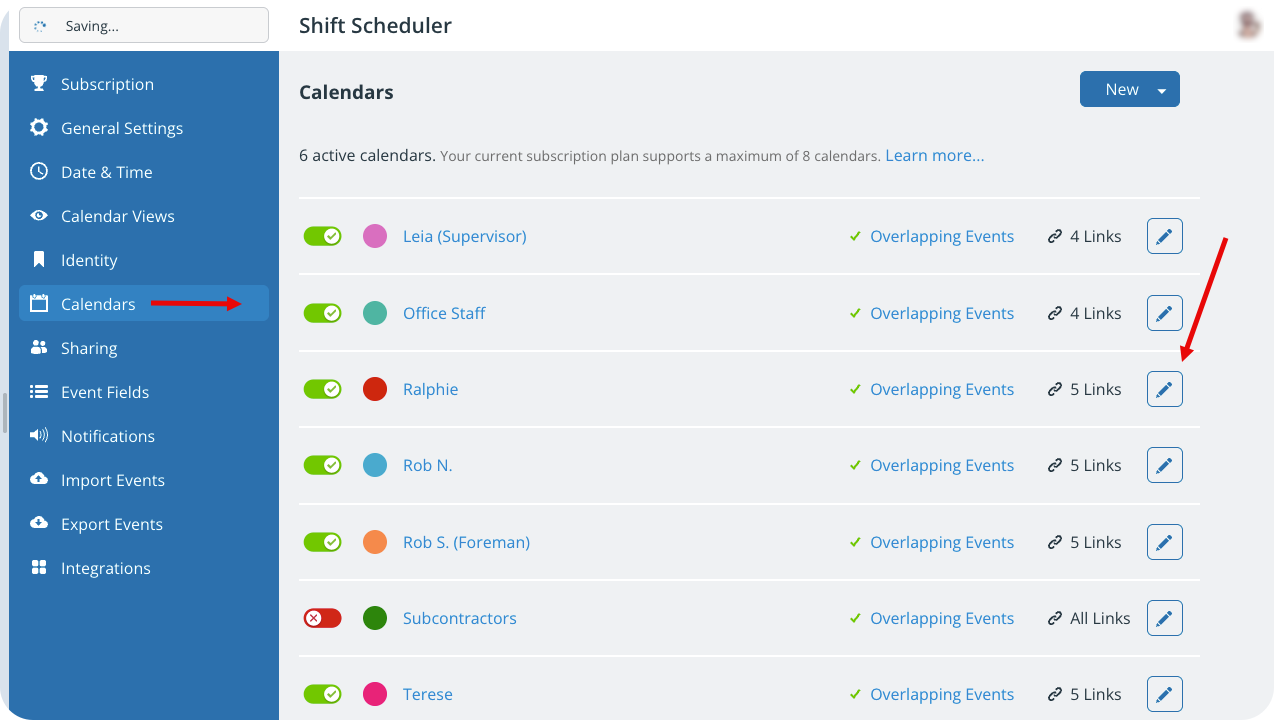
If the former employee had a dedicated sub-calendar, you can reassign the entire sub-calendar to another employee by changing the sub-calendar name (and color, if desired). This is helpful if the exiting employee was working on projects and tasks you want to assign to a newly hired employee.
- When you re-assign a calendar, you may need to change who has access to it, or update their permission levels. When updating the sub-calendar, check the Users with Access section to see who currently has access to the calendar and make changes as needed.
You can also move or re-assign data in other ways:
- Move individual events to a different sub-calendar if you want to maintain an archive of the employee’s completed work, but there are still active events on their calendar.
- Assign events to a different sub-calendar without removing them from the original calendar to keep a record of the active tasks/projects the exiting employee was working on while simultaneously reassigning them.
- Duplicate events to a different sub-calendar to create a copy without any comments while keeping the original event with comments.
Export the data
To keep records of an employee’s work in another format, export data from the calendar:
- Use Table view or the List view to generate a PDF report to download and/or print. Toggle sub-calendars to show only the former employee’s calendar, or use filters to show only relevant events to include in the report. Adjust dates to capture the relevant timeframe.
- Adjust the print options as needed (e.g. hide the sidebar, make sure the page layout is correct) then download or print the report. Note: If you need to adjust the scale more, use your browser’s print option; scale as needed, then save as a PDF or print.
- Export the calendar data to a CSV file. You’ll need administrator access to export data in this way using the bulk export feature.
Archive or delete the data
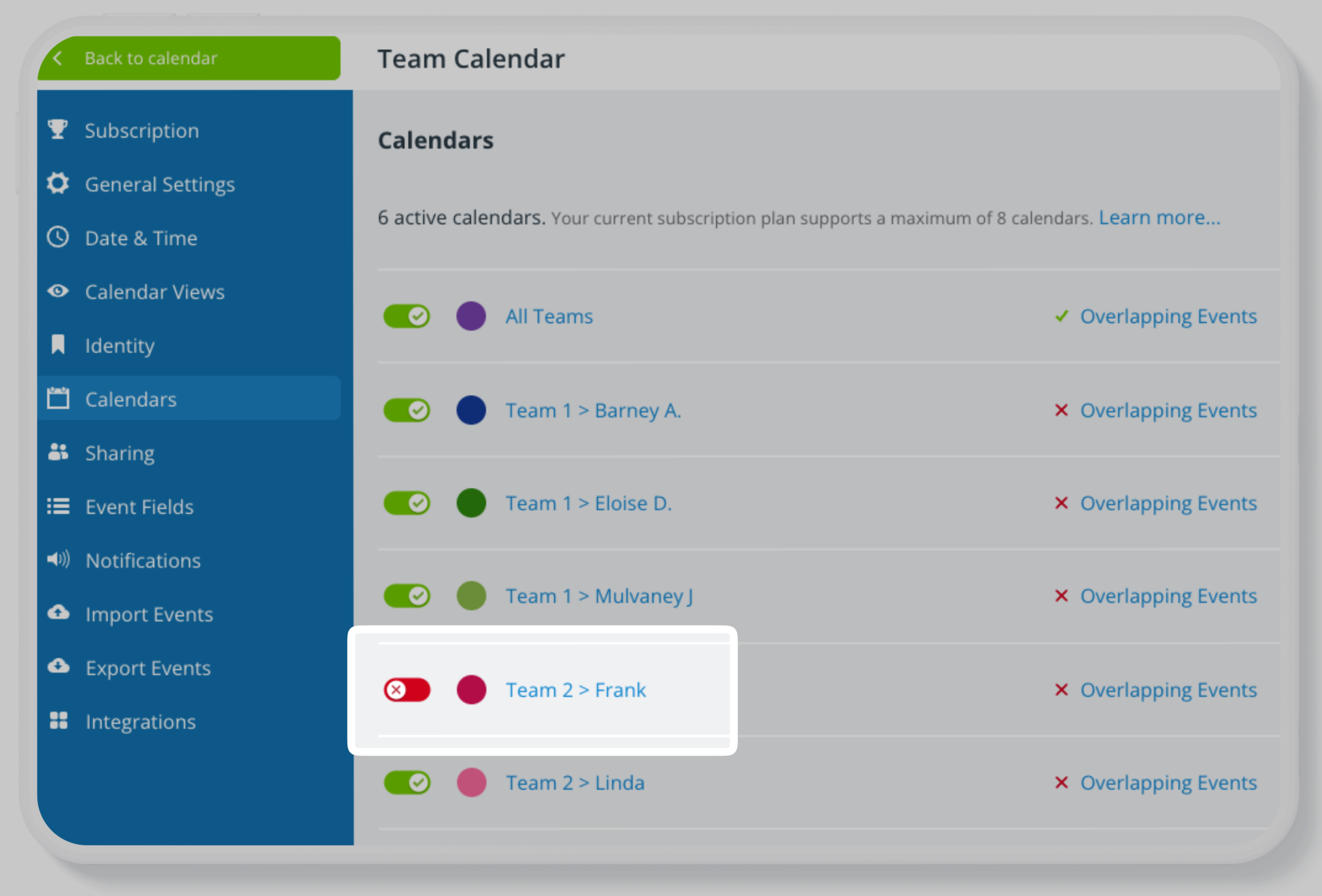
You can deactivate any sub-calendar as a way to archive its data. Deactivating the employee’s sub-calendar will remove it from active view but maintain the data on it. You can reactivate the calendar to access its data again.
Two important notes about deactivated sub-calendars:
- Historical data limits apply to deactivated sub-calendars. If data on an archival (deactivated) sub-calendar is older than the historical data allowed on your subscription, that data will not be accessible. You can temporarily upgrade your subscription to access it.
- Deactivated sub-calendars do not count against your subscription’s sub-calendar limit. You can have multiple archival sub-calendars over your limit, as long as they are deactivated. To reactivate an archival sub-calendar, you may need to temporarily deactivate a current sub-calendar if the calendar is at its subscription limit of active sub-calendars.
The other option is to delete the sub-calendar. Note that deleting a sub-calendar is permanent; the sub-calendar and all its data will be removed permanently. You will not be able to retrieve the data once the sub-calendar is deleted. Be sure to export any data you want to retain before deleting a sub-calendar.