Stay updated automatically with Teamup’s change notifications. When something on your calendar changes, get notified via email or push (or both!). Customize the notifications so you only get updated about what’s relevant to you. It’s a convenient way to stay updated about key changes without even having to check the calendar.
Delivery methods
- Email notifications: Immediate delivery or a daily summary.
- Mobile push notifications: Set up notifications on the Teamup app.
- Browser push notifications: Get pinged in your browser.
- Slack notifications: Updates sent to a private or group channel.
Use the delivery method that gets the update to you in the most convenient and helpful way. If shifts are assigned every Monday, for example, an email summary lets employees see all their shift assignments in a list rather than getting separate pings for each one. If they want to respond quickly when a coworker comments asking to swap shifts, push notifications (on mobile or browser) are the way to go.
Notification types
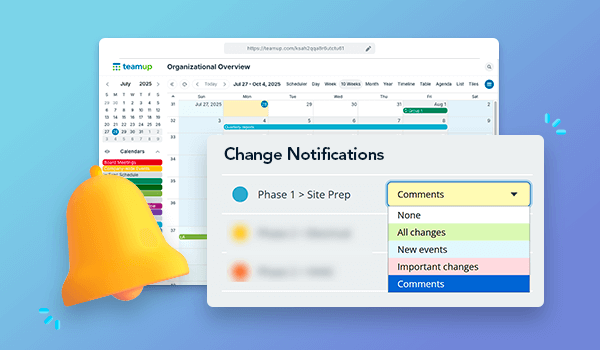
- New events: Get notified when a new event is created.
- Important changes: Get notified for new events, deleted events, and date/time changes.
- All changes: Get notified about any event changes, including comments and signups.
- New! Comments: Get notified when comments are added or updated.
You decide what triggers a notification. Each crew member, for example, can get push notifications for important changes on their own sub-calendars. So if a job time is changed or a new job is added, they’ll get pinged — but only for their own assignments. Office staff might want comments-only notifications so they get pinged when a crew member adds an update. Everyone gets the immediate updates they need without notification clutter.
Selected sub-calendars
Set notifications up to match your priorities. Select a different notification type for each sub-calendar so you’re informed about what matters to you.
For a team working on a project together, each member can customize notifications to match their contribution. The team lead might want to see all changes so they can track status updates and have an overview of what each team member is working on. Team members get notifications for all changes on their own calendars, so they know when a task is assigned or a colleague comments.
Or pick one notification type for all sub-calendars. Subscribing to email notifications of all changes to all events provides a convenient edit history. Getting notified of comments on any events can help you respond quickly to questions from your team.
Notification timing
Push notifications and Slack notifications are always immediate; email notifications can be sent immediately or as a daily summary.
Some notifications are only useful if they’re timely. If a sports practice is canceled or the location changes, parents and players need to know right away. Immediacy matters so everyone can adjust in real-time to the changes.
Other notifications are useful as a record, or an easy way to stay informed. They don’t require action or response, so immediacy isn’t an issue. You can have those updates delivered in one daily summary via email. Review when it fits into your schedule instead of losing focus with every change.
Change notifications in action
Change notifications let everyone quickly see the most relevant updates to the calendar when and where it’s most convenient.
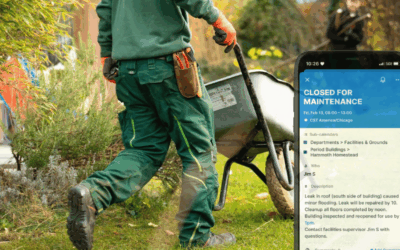
- Field crews: Crew members have push notifications so they’re pinged right away if a job time changes or a new job is added to their schedule.
- Project collaboration: Team members set up customized notifications so they each get the right updates for their role in the project, sent as a convenient daily summary.
- Sports clubs: Players or parents automatically receive an email immediately if a practice is rescheduled due to weather, a new game is added, or a location changes.
- Shift schedules: Employees get an email summary for shift assignments and PTO requests, and get an immediate push notification if a coworker wants to swap shifts.
Set up change notifications
- Browser: Set up email notifications or browser push notifications.
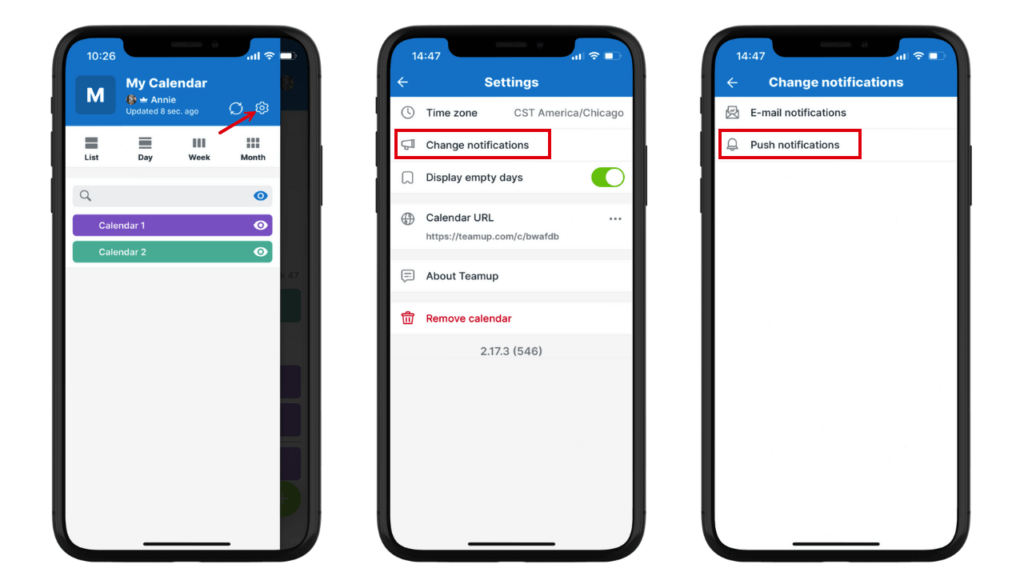
- Teamup app: Set up email notifications or mobile push notifications.
You’ll need a Teamup user account to set up and manage notifications. If you’re logged in but don’t see the option, your calendar administrator needs to enable it. If you don’t have a Teamup account, create one. They’re free. Give it a try for convenient updates you can fine-tune so you stay informed without being overwhelmed.