
Getting Started Guide for Administrators
Calendar Administrators: Here’s an overview of the most important things to consider as you set up a calendar. Learn about your role as a calendar administrator and how to access the settings, structure the calendar, grant calendar access to others securely, and use important calendar features.
Contents
👑 Your role as a calendar administrator
🌟 First steps with your Teamup calendar
1: Access calendar settings 2: Create sub-calendars 3: Grant calendar access
⚙️ Configure your Teamup calendar
💎 General Settings ⏰ Date and Time 🖼️ Calendar Views 👥 Identity 📅 Calendars 👌 Sharing
🎫 Event fields 🔔 Notifications 📥 Import Events 📤 Export Events 🏆 Subscription
Your role as a calendar administrator
The calendar administrator is any authorized person who has administrator access to the calendar. The calendar administrator can access the calendar settings, create and manage sub-calendars, configure the defaults and other options, and manage calendar sharing. Administrator access should be carefully protected and only provided to people with the correct authorization and understanding.
- You may be the person who created the calendar.
- Or you may have been given administrator-level access to the calendar.
Learn more about administrator access→
First steps with your Teamup calendar
To get started with your Teamup calendar, think about what you want to schedule and how you want to organize information. Then you can begin to set up your calendar in a way that works best for your needs. Take a look at this guide to learn about how to structure the calendar with sub-calendars and custom fields.
1: Access calendar settings
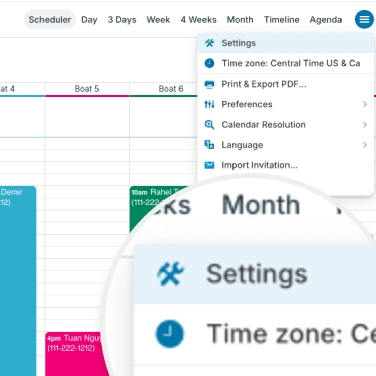
Teamup calendar settings are the control center of the calendar, where the calendar administrator can create sub-calendars, manage users, and configure settings. Settings are accessible only in a browser (not in the Teamup app).
To go to the settings: Click the blue menu (top right) then select Settings.
2: Create sub-calendars
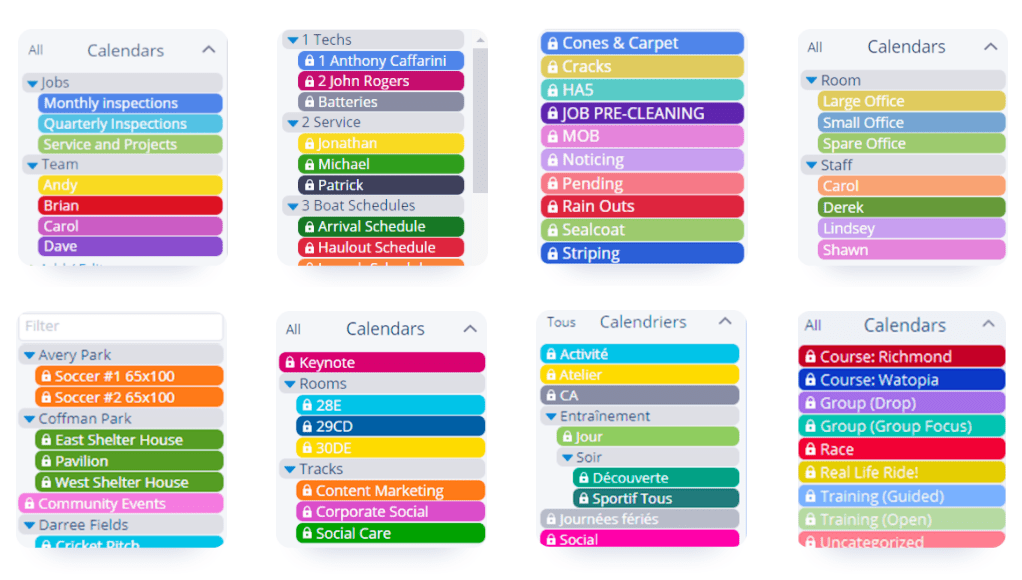
Sub-calendars can represent people, resources, projects, areas, or anything else you need to organize or schedule.
Better calendar setup makes all the difference in how well your calendar works for you. So choosing how to organize your calendar is a key decision. It’s directly related to how your calendar functions, which means calendar organization can make you more or less efficient when using the calendar.
3: Grant calendar access
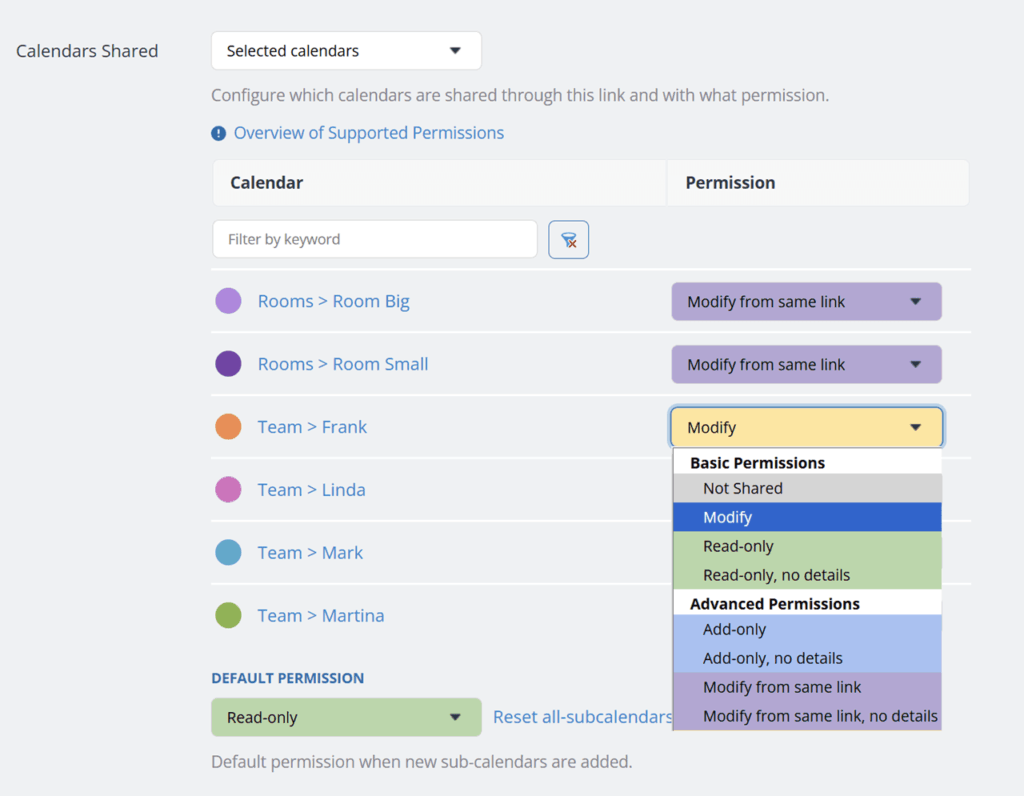
With Teamup, calendar access for every user is customized and centrally controlled by the calendar administrator, who decides exactly who can see what, and what they can do — all from one place.
When you give someone access to a calendar, you need to define the permission level you want to grant. There are 9 permisson levels which you can set for individually per sub-calendar or apply to all sub-calendars for that user. The advanced access permissions are helpful for scenarios that are slightly more complex and require more granular permissions for users.
Configure Teamup for your needs
In the calendar settings, there are several options and defaults you can configure for your needs.
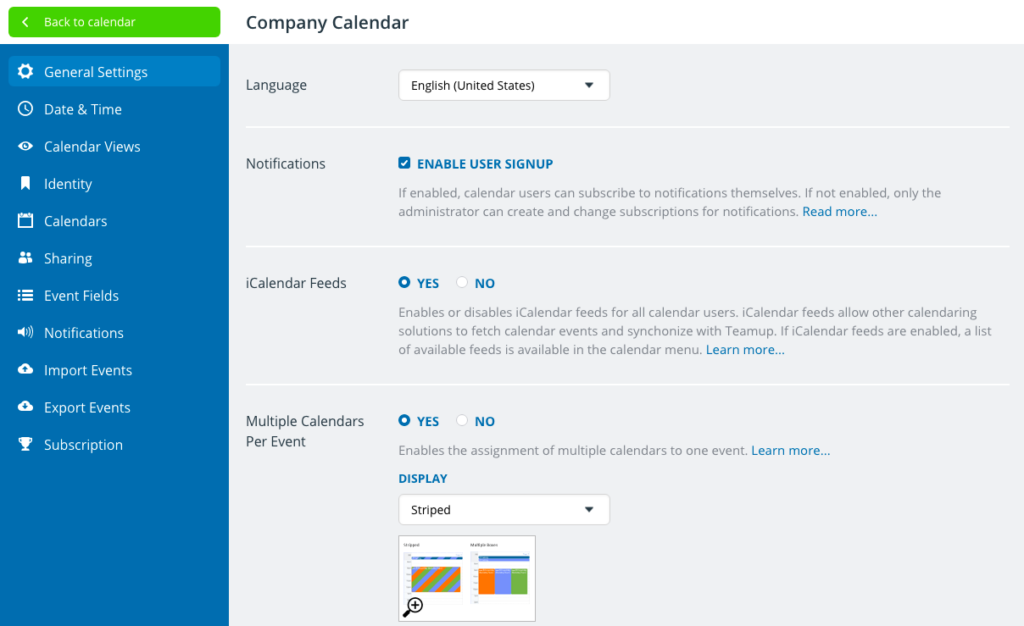
General Settings
- Choose the default language for your calendar.
- Enable or disable user signup for email notifications.
- Enable or disable iCalendar feeds.
- Enable or disable assigning one event to multiple calendars.
- Enable, disable or change event sharing options.
- Showing or collapsing the sidebar and the date picker.
- Edit the About box for the calendar.
Date and Time
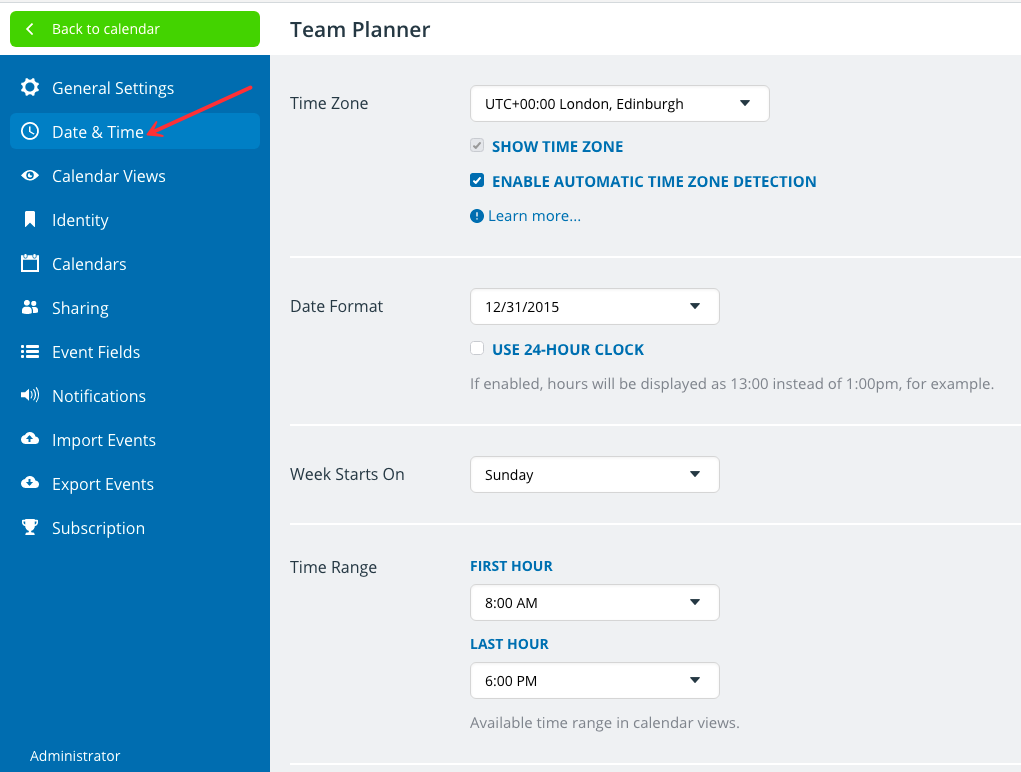
- Time zone conversions for 140+ time zones.
- Select the applicable date format for your primary user base.
- Select the default start day of the week.
- Select the visible time range when your calendar is displayed with a time grid.
- Configure the calendar to always open on a specific date, e.g. a conference date, rather than the current date.
Calendar Views
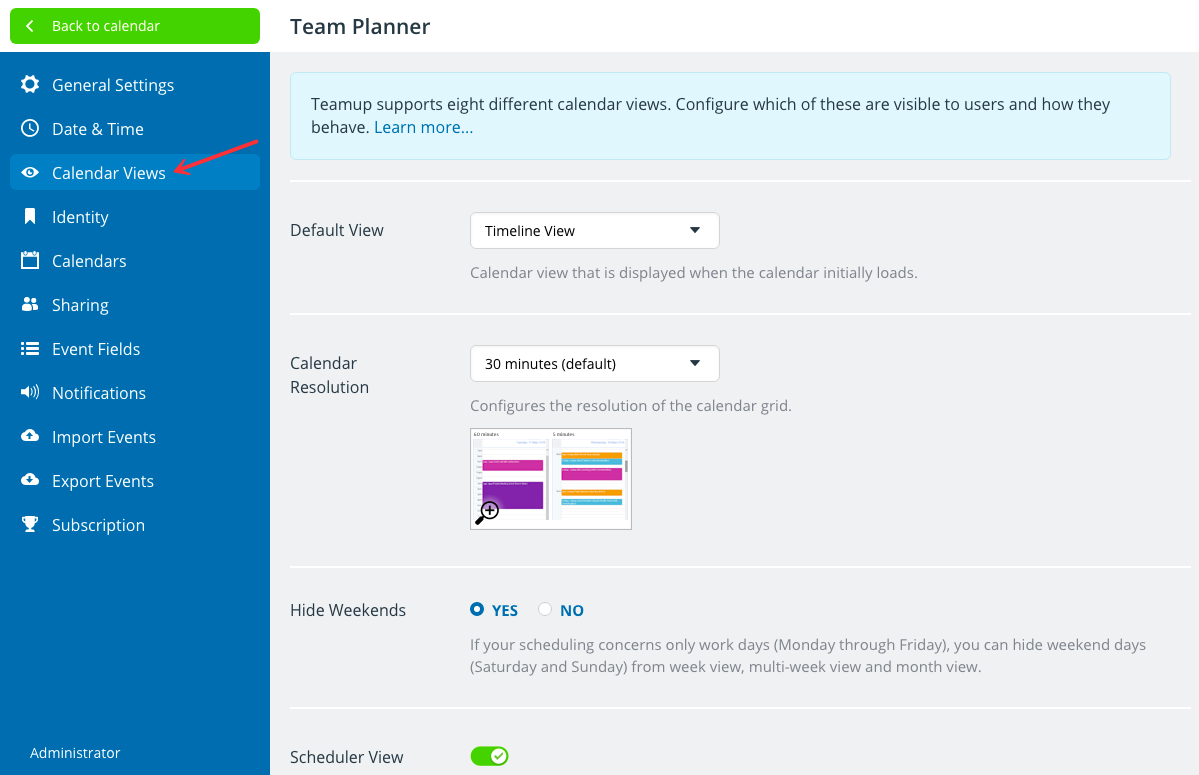
- There are 12 different calendar views, including standard view like Day, Week, Month and unique layouts like Tiles view, Scheduler view, and Table view.
- For long-range planning, there are multiple ways to see an entire year on one page.
- Adjust the time resolution and choose to show or hide weekends.
- Toggle calendar views on and off; if toggled off, the view will no longer be available in the calendar interface.
Identity
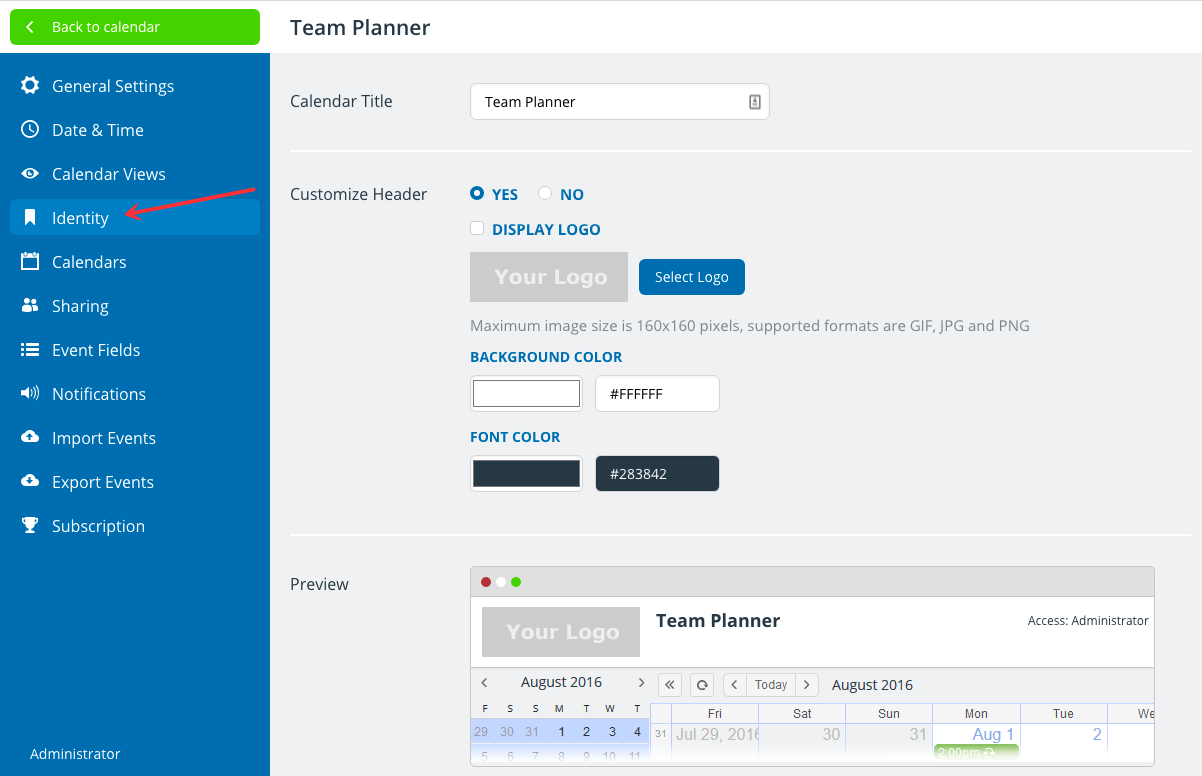
- Change the calendar title, if desired.
- Upload your own logo.
- Customize the header colors (background and font).
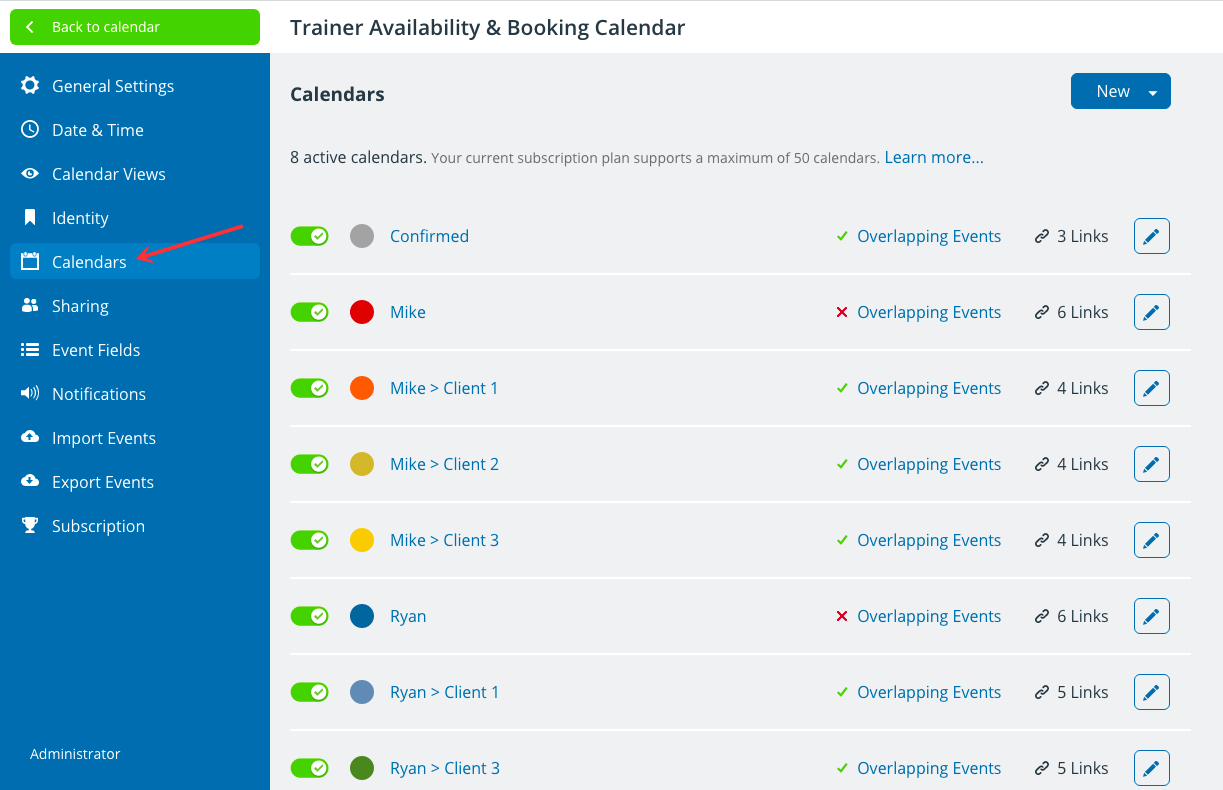
Calendars
- Prevent double bookings by disallowing overlapping events.
- Group sub-calendars into folders for easy organization.
- You’re always in control of who can access each sub-calendar.
- The number of available sub-calendars is linked to your subscription plan. You can upgrade any time to use more sub-calendars.
Sharing
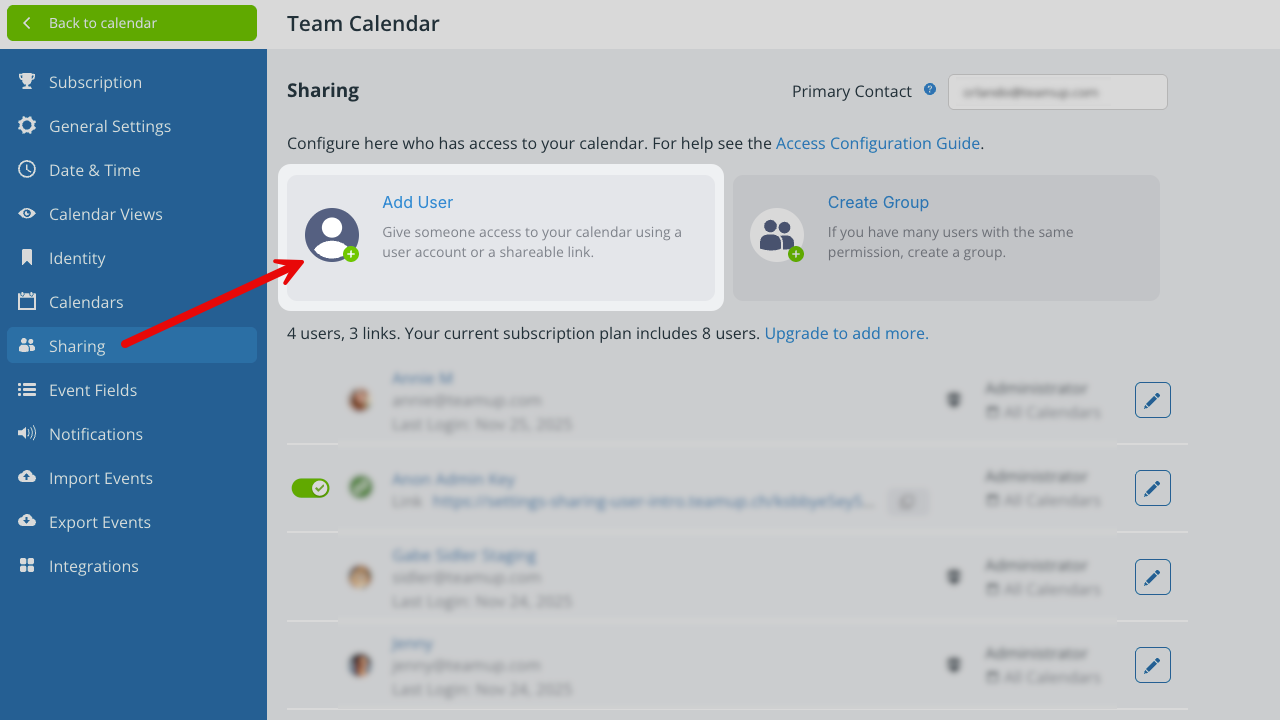
- With a Teamup calendar, you can share your calendar securely with others by adding users.
- You can customize access with granular permission levels and organize users in groups.
- Use a secure link to embed the calendar on a website.
- The number of users available is linked to your subscription plan. You can upgrade any time to add more users.
Event Fields
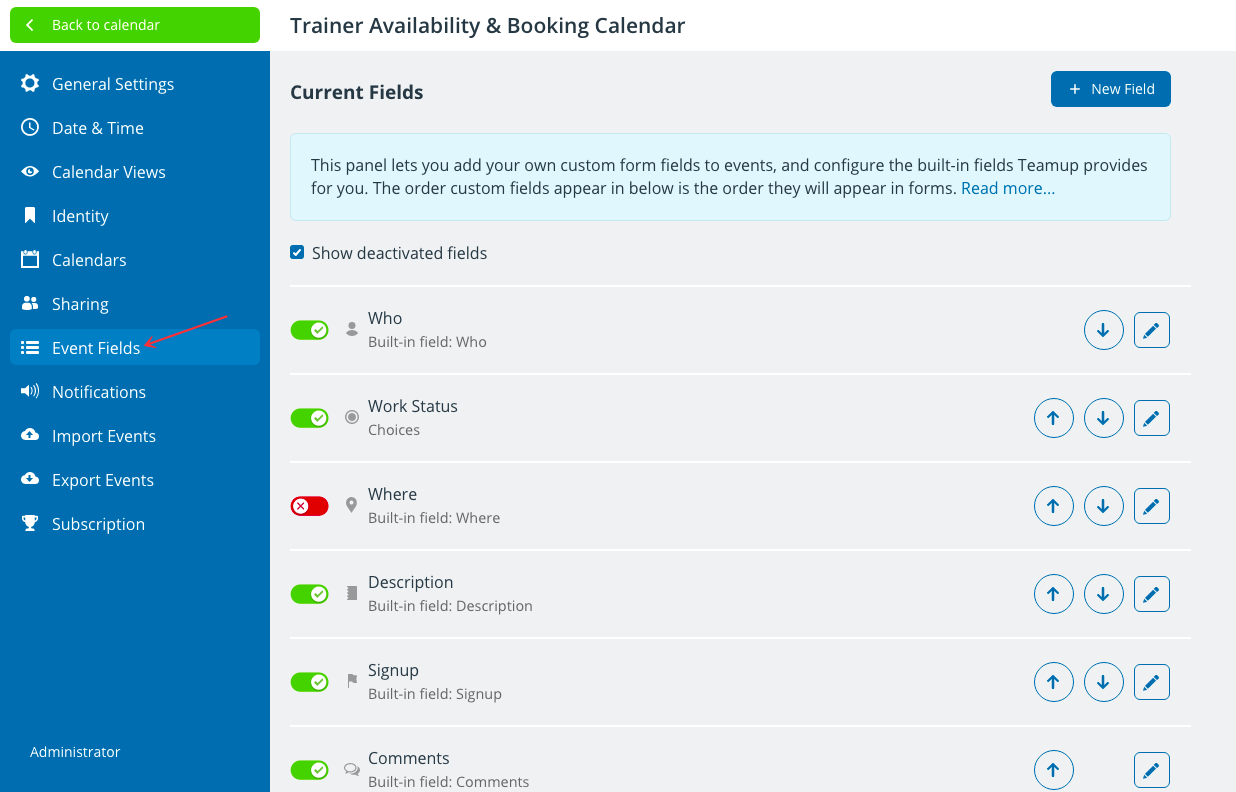
- Each Teamup calendar has default event fields, including Who, Where, Description, Signup, and Comments.
- Configure these default event fields as needed.
- Create custom event fields to match how you capture and organize information.
- There are different custom field types: text, number, and choice.
- Configure visibility for both default and custom event fields.
- The number of custom event fields available is linked to your subscription plan. Upgrade any time to add more custom event fields.
Notifications
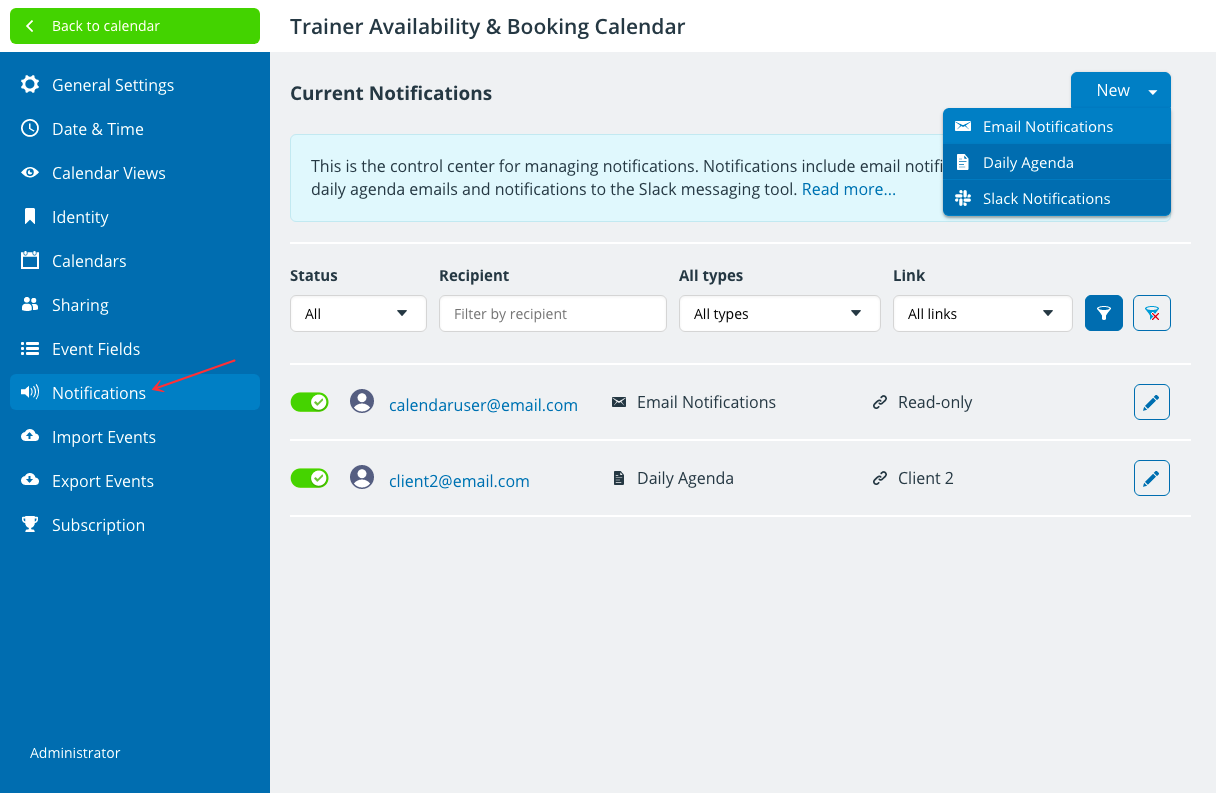
- Teamup calendar supports email notifications, daily agenda emails, event reminders, and Slack integration.
- Teamup email notifications allow calendar users to be notified when changes are made to events on the calendar, whereas event reminders alert calendar users of upcoming events.
- If user signup for notifications is enabled (in General Settings), account-based users will be able to add or modify their own notification subscriptions.
Import Events
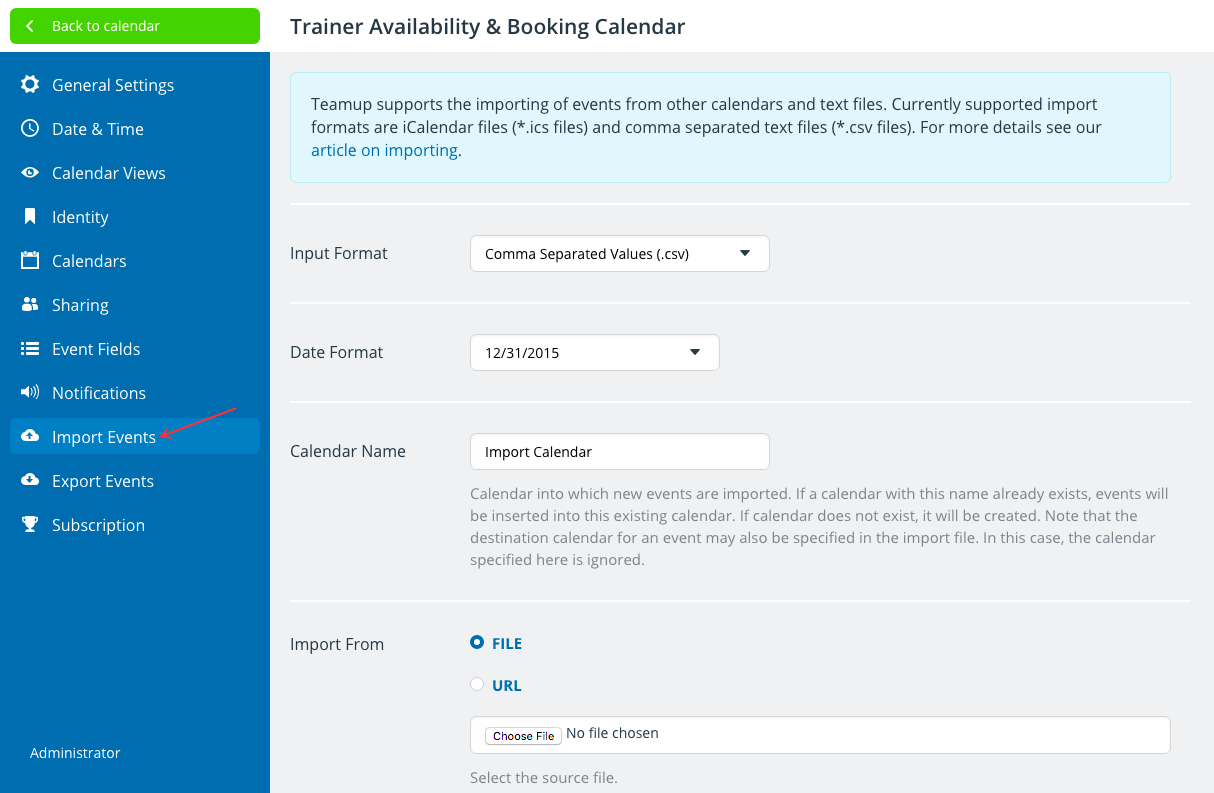
- You can import calendar data from other calendar applications, spreadsheets, databases and text fields.
- Currently supported import formats are iCalendar files (#.ics) and text files with comma-separated values (*.csv).
- You can also import data from one Teamup Calendar to another.
- Only the calendar administrator can import files.
Export Events
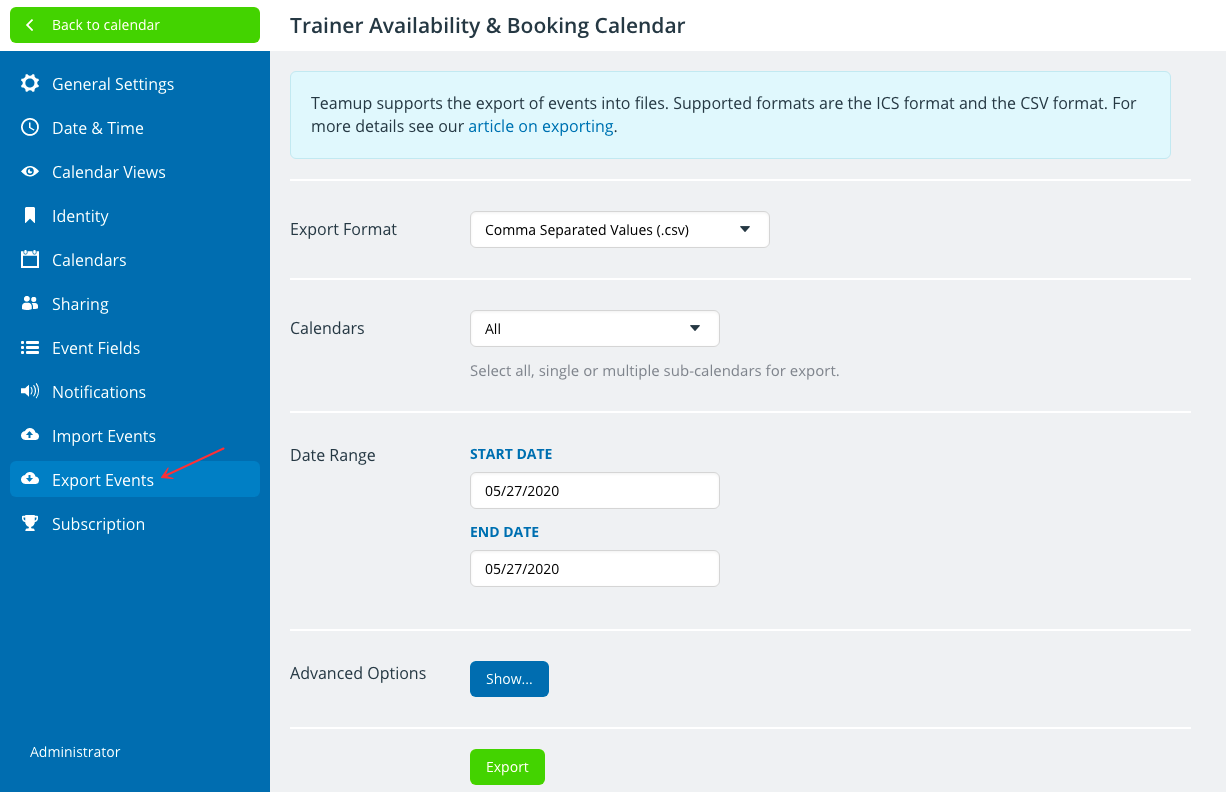
- You can bulk export calendar data from your Teamup Calendar to text files with comma-separated values (.csv) or iCalendar files (.ics).
- It is possible to choose to export events from a specific sub-calendar or all calendars.
- You can also export event signups and event comments in the .csv file format.
- Only the calendar administrator can bulk export.
Subscription
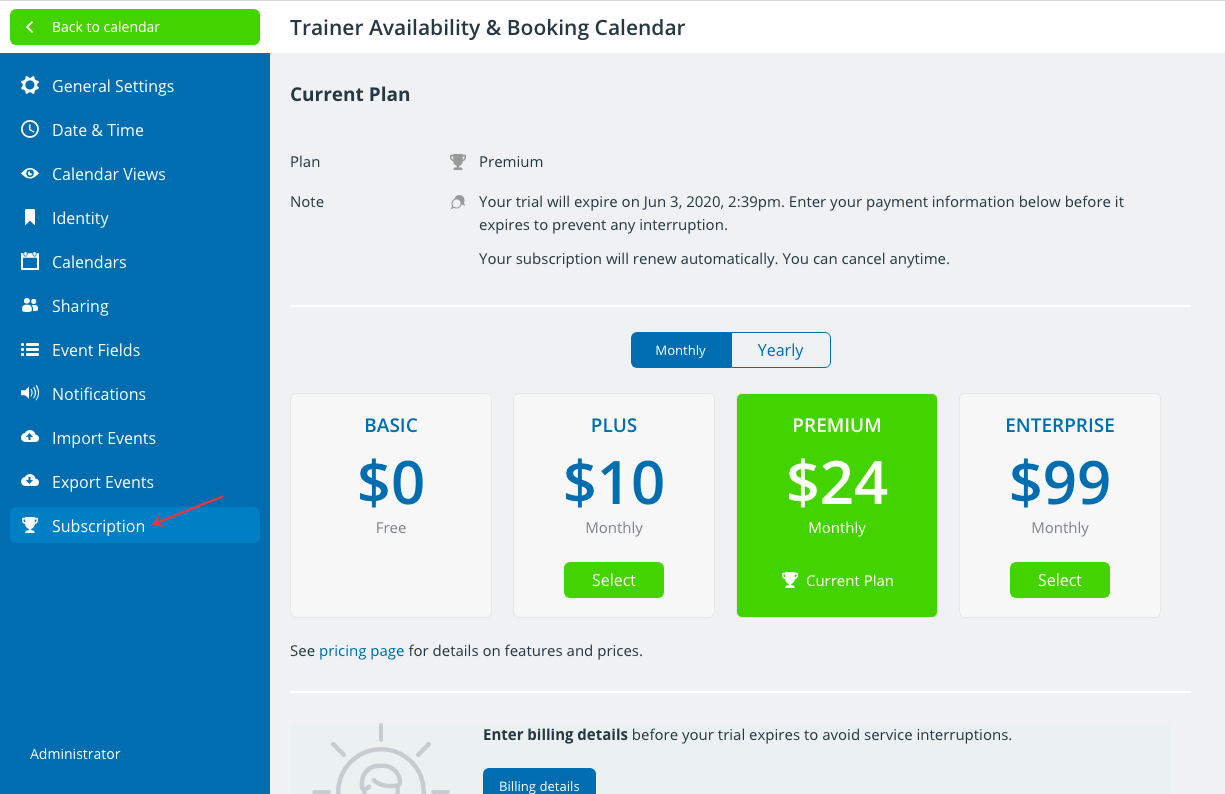
- There are several subscription plans available for Teamup Calendar.
- To test out all the features before deciding on a plan, start a free trial calendar or use a live demo calendar.
- When you are ready to upgrade to a different plan, simply click the relevant upgrade button and complete the payment.
- As soon as the payment is successfully completed, the upgrade takes place automatically.
Ready to get started?
All the features you need. Easy to learn.
get inspired by browsing what others say and our million thanks.
TABLE OF CONTENTS