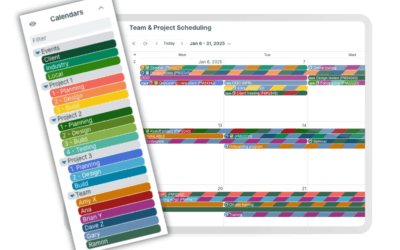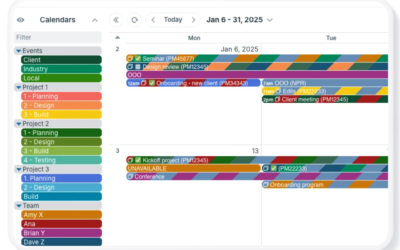
On many calendars used for team planning, shift scheduling, and work assignments, it’s common to have one sub-calendar for each team member, so that all jobs and events related to the team member are assigned to their dedicated sub-calendar.
🏢 A sub-calendar is like a workspace dedicated to the employee in the company’s office building.
For the team members to access their assigned jobs and update events on the calendar, each of them also needs to be added as a calendar user.
🔑 A user’s login (email and password) is like the key (or ID card) they need to access their workspace.
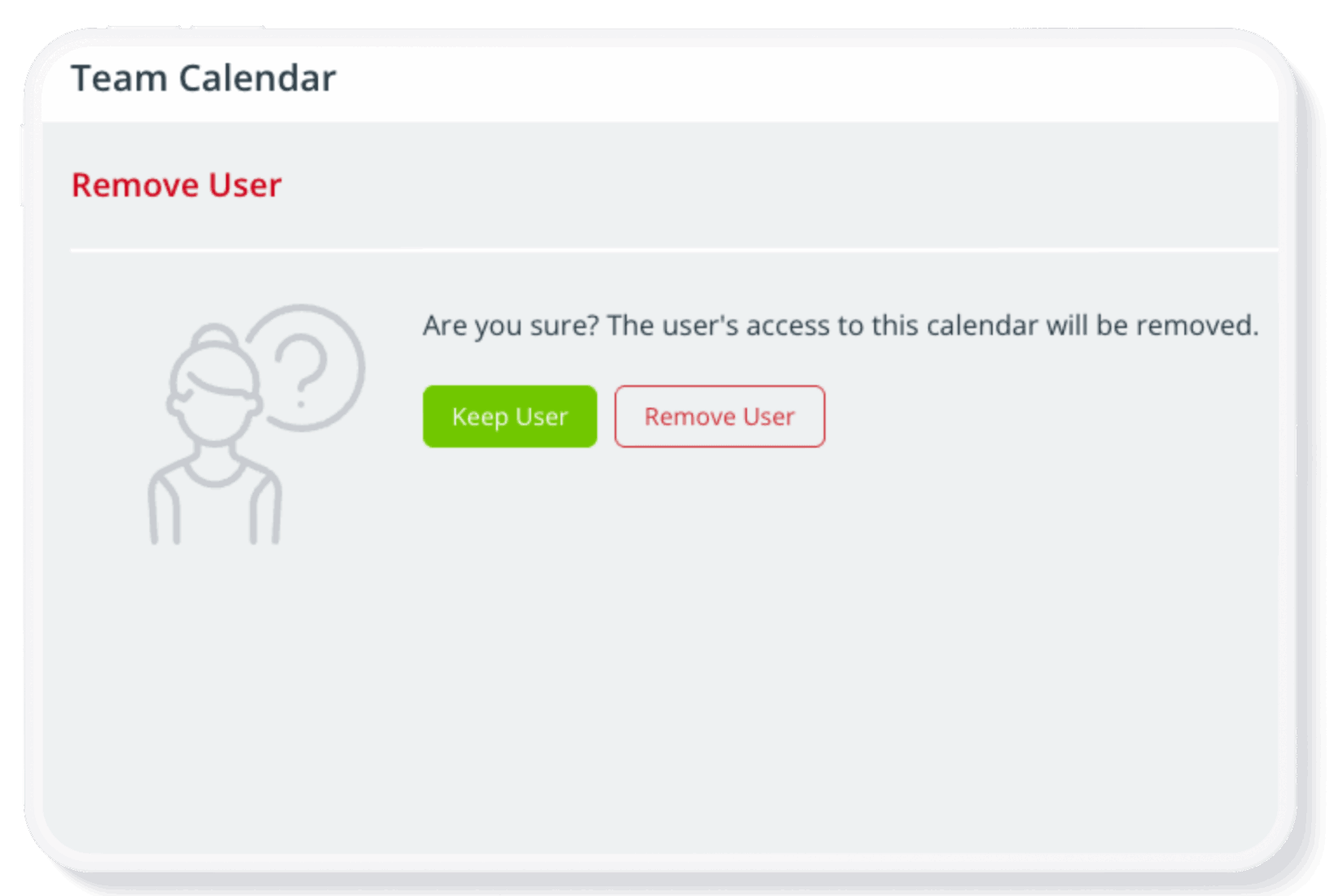
If a team member leaves the organization, the calendar administrator needs to remove the user’s access to the calendar immediately. This is done by removing the user. When you remove a user, you do not lose the data on the user’s sub-calendar.
🔒 Removing a user is like revoking their key/ID card that they use to access the office and their own workspace. The workspace itself and all it contains (files, notes, work records, etc.) remains in the company’s control and can be archived, removed, and/or repurposed.
Summary: Sub-calendars and calendar users are two separate things.
- As a calendar admin, you can create a sub-calendar for an employee. The sub-calendar holds the jobs and events for that individual.
- You also need to add that individual as a calendar user and grant that person customized access to their sub-calendar and any other sub-calendars they need to do their jobs.
Removing a user does not remove their data.
- Calendar data exists independently of calendar users.
- As a calendar admin, you can remove any user or delete any links as needed. Doing so will not affect the data added by or for that user.
- if a user has a dedicated sub-calendar, removing the user will not delete their sub-calendar.
Sub-calendars v calendar users
A typical team calendar might contain a sub-calendar named Bob Smith and a calendar user named Bob Smith. While they have the same name, they are two things independent of each other.
The Bob Smith sub-calendar holds the events (the data) for or related to Bob Smith; these events might be created by the user Bob Smith, or added by someone else (e.g. a supervisor or colleague).
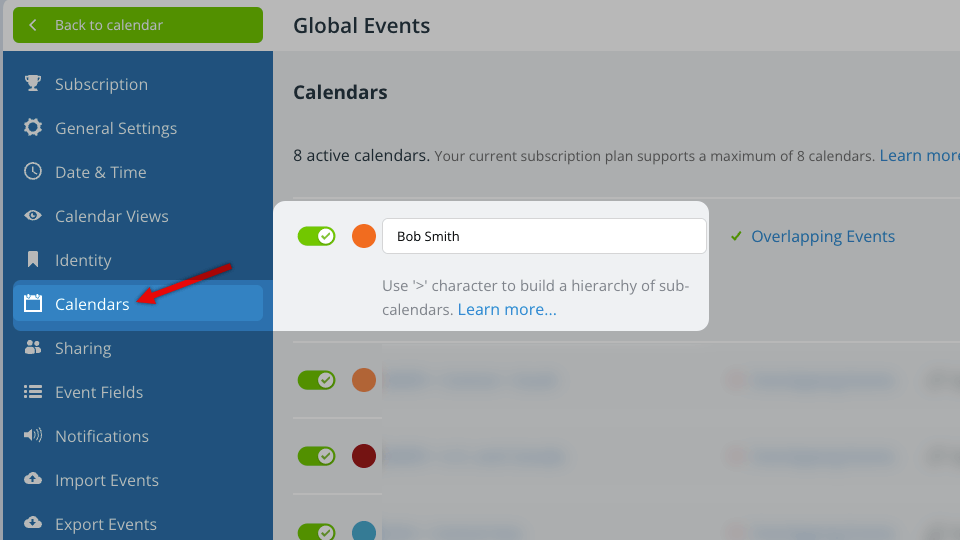
The Bob Smith calendar user can view and work with the events on that sub-calendar; he might also be able to view events on other sub-calendars, depending on how his access has been customized.
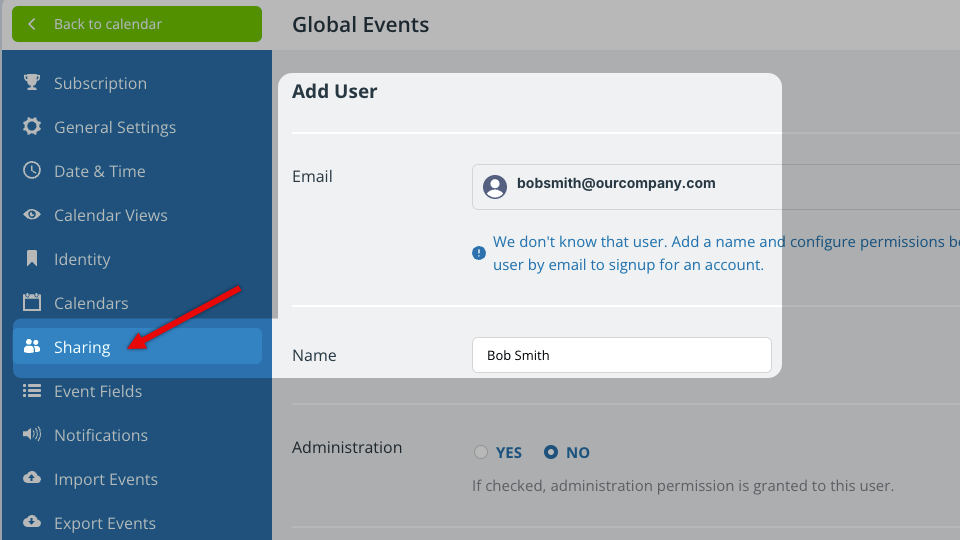
Example: Setting up a team calendar
To set up the team calendar, the calendar administrator must:
- Create a sub-calendar for each team member.
- Add each team member as a calendar user via email.
Create the sub-calendars
Each team member’s availability, scheduled shifts, and work assignments are added to their sub-calendar.
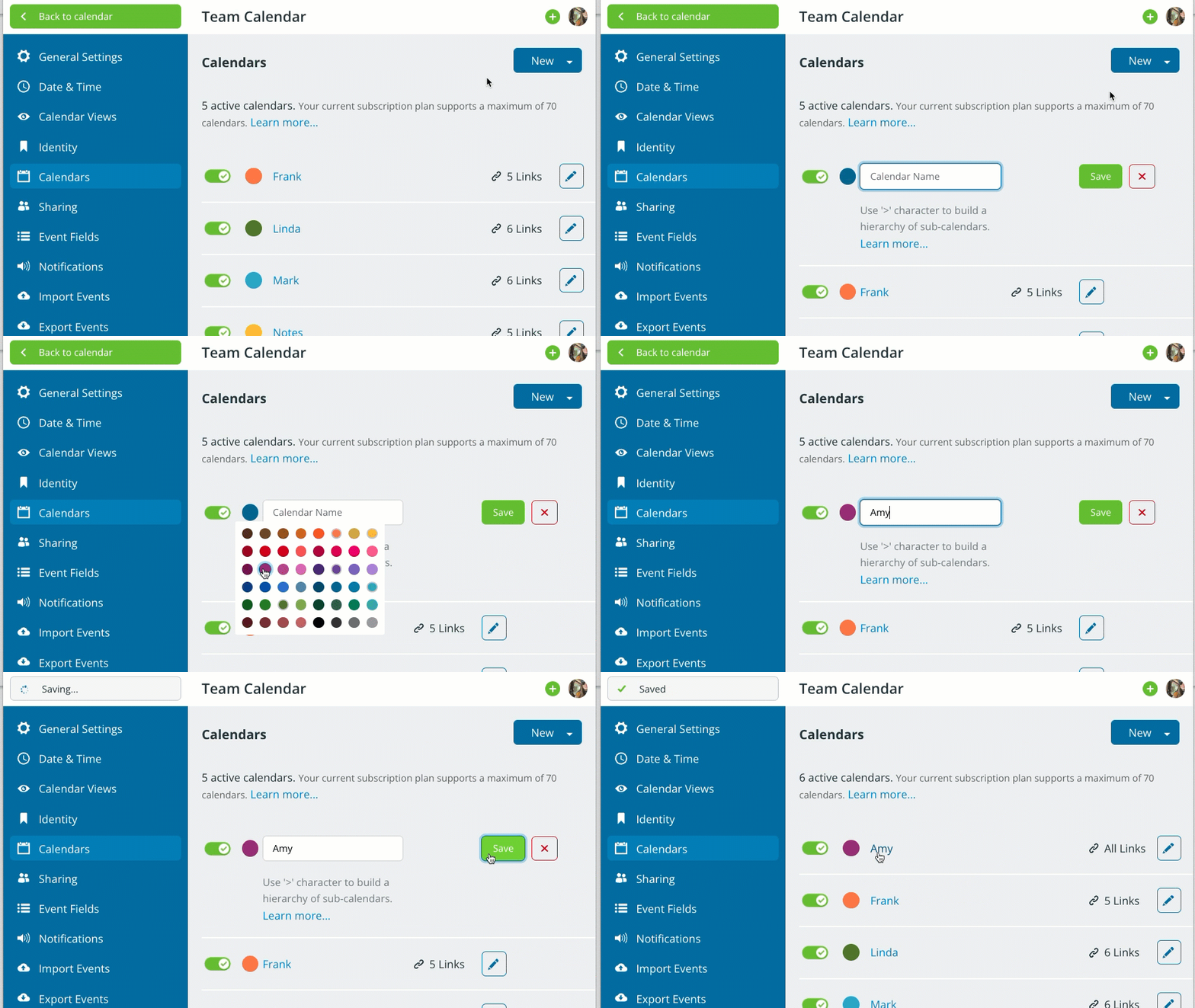
For a team member named Amy:
- Create a sub-calendar named Amy.
- This sub-calendar will be the calendar space to hold Amy’s activities, events, etc. When a supervisor has a job for Amy, they put the event on Amy’s sub-calendar.
- Having a sub-calendar named Amy does not make Amy a calendar user or give her an account. The sub-calendar is the place where her schedule is kept. In order to access her sub-calendar (and add her own events to it), Amy needs to be added as a calendar user.
Add the users
Being a calendar user is how each team member can access the place (sub-calendar) where their schedule is kept.
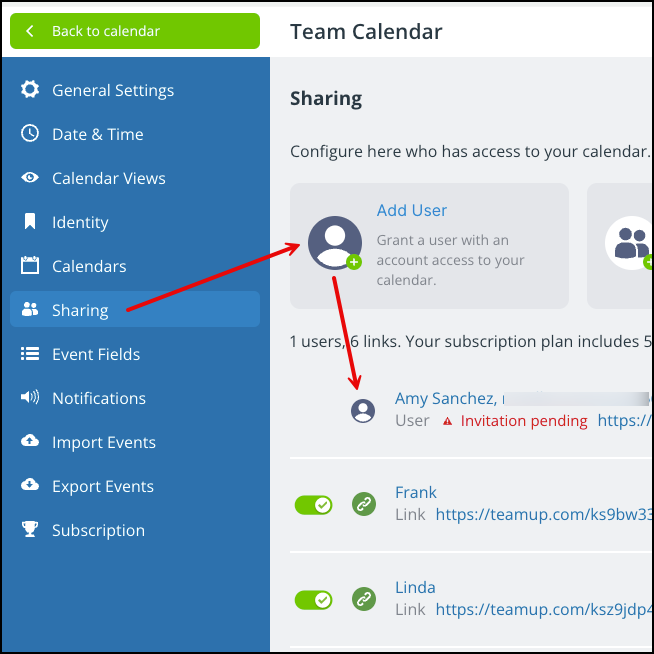
To make Amy a calendar user:
- Add Amy as a user via email.
- When adding, customize her access permissions: Choose which sub-calendars Amy can access, and select the permission level for each one.
- For example, Amy might need to add events to her own calendar, and view schedules for her team mates. Give her modify-my-events permission for her own sub-calendar, and read-only permission for the other team sub-calendars.
Remove users without losing their data
Sub-calendars and calendar users are two separate things. This means that calendar data exists independently of calendar users.
- Removing a calendar user will not remove their sub-calendar or delete the events they added to the calendar.
- Deactivating or deleting a sub-calendar will not remove any users from the calendar.
If an employee leaves the organization, it’s safe to remove their access as a user. Doing so won’t remove their data: the events they added or were assigned to will remain on the calendar.
If you want to remove the data on the sub-calendar dedicated for that individual, you need to deactivate or delete that sub-calendar.
Example: A team member leaves
If someone leaves an organization, the calendar administrator should take immediate steps to keep the calendar secure. For example, if Amy leaves the team, the calendar administrator should:
- Remove the calendar user Amy immediately. This will prevent her from accessing the calendar.
- Secure any compromised links and turn off Amy’s notifications.
These two steps effectively prevent Amy from accessing the calendar. It’s like canceling her employee ID card or having her turn in her key: She can no longer enter the office and access her former assigned workspace. But the workspace itself (the sub-calendar named Amy and all the events it contains) still exist: That is, all Amy’s data will still be on the calendar, under the administrator’s control. If Amy created events on other sub-calendars, those events will still be on the calendar as well. Amy can no longer access the workspace and the data it contains. But her workspace and its data are still accessible for the administrator and her team leader, and can be repurposed as needed.