Event comments can serve many purposes: discussion of event details, monitoring progress on a project, obtaining feedback, or saving internal notes. Administrators can configure the default settings. Users with modify access can manage event comments on individual events. See also how to use events on the Teamup app.
Admins: Configure defaults for comments
Access level required: Administrator
- Administrators can configure the default settings for comments.
- Open Teamup in a browser and click the blue menu (top right).
- Select Settings.
- Click the Event Fields tab.
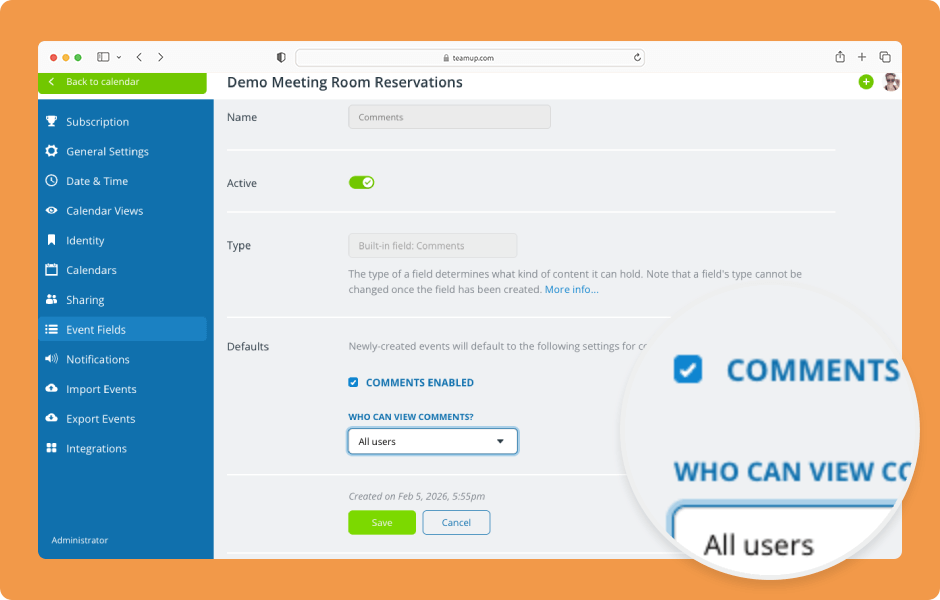
- Scroll to the Comments field.
- Click the pencil icon.
- Scroll to the Defaults section.
- Check the box for Comments Enabled to have comments enabled on all events by default. You can still turn comments off for individual events.
- Click the arrow to see options for Who can view comments?.
- Select All users to make comments visible and usable by all calendar viewers, even those with read-only access.
- Select Users with modify permission to restrict comment use. Only users who have modify permission will be able to use and view comments.
- Click Save.
Modifiers: Manage comments on individual events
Minimum access level required: Modify
- Users with modify access can manage comments on individual events.
- To change comment settings on an individual event, open that event.
- Click Edit to access the event editor if needed.
- Click Options.
- Select Comments.
- Customize the Event comments settings for the event as needed. Then click Done.
- Click Save to apply the changes.
- Click the three-dot menu to Edit or Delete a comment.
- Only administrators or users with modify permission can edit and delete comments.
See also how to export event comments and use comments on the Teamup app.
ℹ️ Learn more