Calendar security usually isn’t about complex technical protections. In most cases, issues happen when access is too broad: Users are given a higher permission than they need, or access to calendars that aren’t relevant to their role. Here’s how to make sure your calendar is set up securely.
🔒 Security checklist: Set up your calendar securely
Setting these foundations early helps prevent accidental changes, protects sensitive information, and keeps your calendar manageable as more people start using it.
Get to know the calendar settings
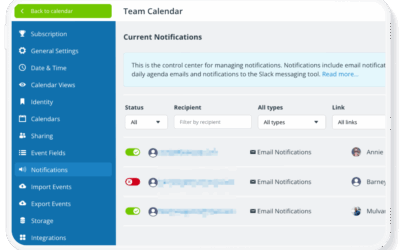
The Settings on a Teamup Calendar are the control center for the calendar. They are only accessible in a browser to administrators. Through the calendar settings, you’ll set up the calendar structure, manage access, control configuration, notifications, billing, and more.
- Take a quick look at this overview of calendar settings.
- Set the default settings (e.g. time zone, calendar view, start date, etc.) for how the calendar is used most often.
- Create and organize sub-calendars in the Calendars section; configure event fields and add custom fields in the Event Fields section.
- Go to the Subscription section to manage the subscription level, payment details, and billing contact.
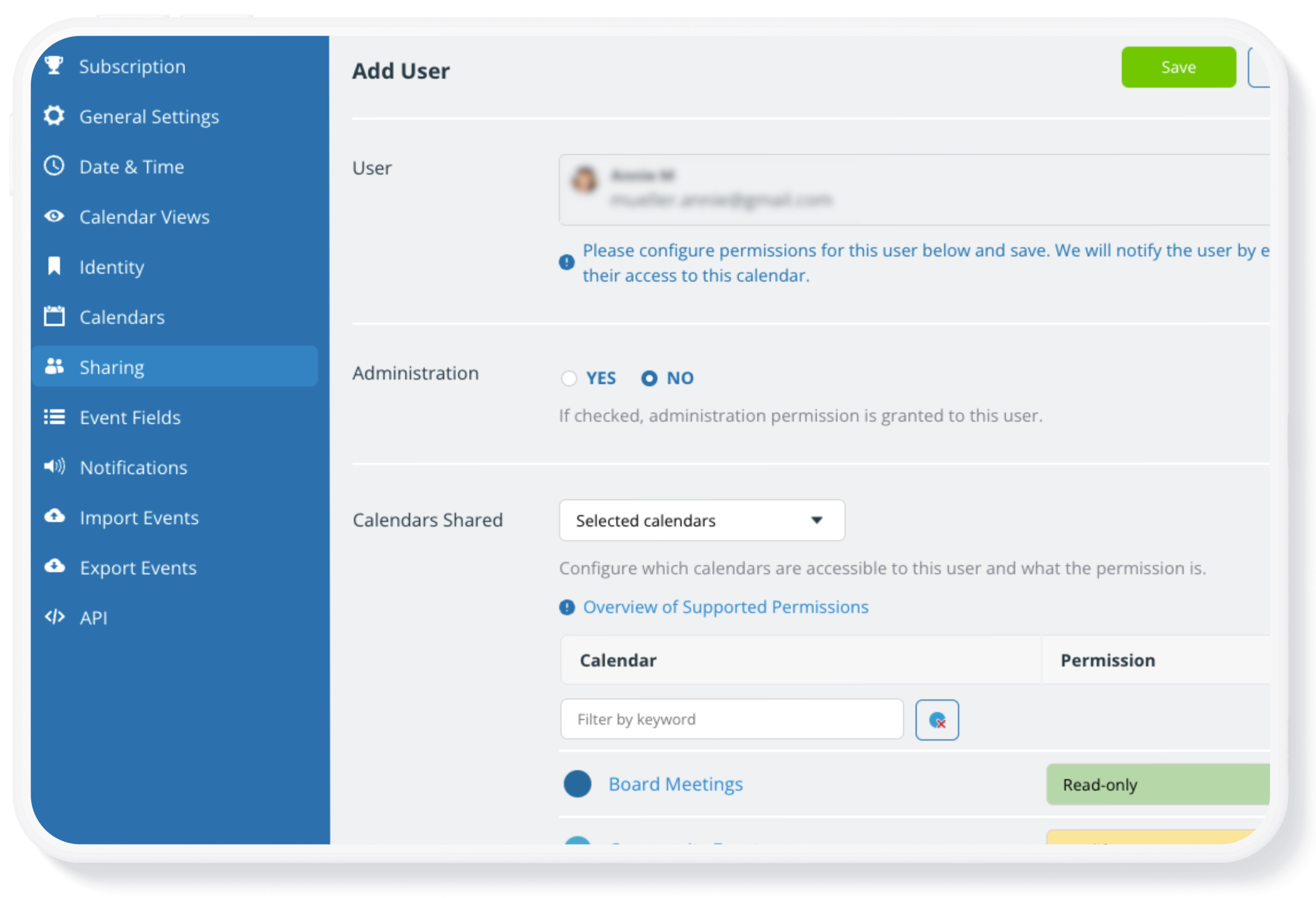
- In the Sharing section, add and manage users and keep access updated and secure.
Limit administrator access
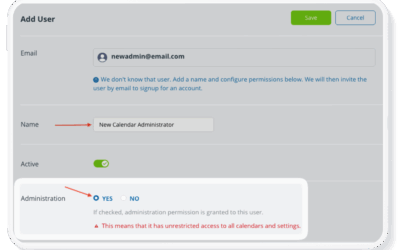
Administrator access is the highest permission level and provides full control over the calendar data, settings, access, and subscription. Because administrators have complete control over the calendar, administrator access should be restricted. Only the people responsible for managing the calendar itself should be given administrator access. We recommend that only one or two people are designated as calendar administrators.
Important: Modify permission provides full ability to manage calendar events (on some or all sub-calendars) without access to the calendar settings. For individuals who need to manage events on the calendar, provide modify access to the relevant sub-calendars.
ℹ️ Learn more about administrator access
Use account-based access
With Teamup, calendar access for every user is customized and centrally controlled by the calendar administrator. For best security, add users by email with customized, account-based access which provides these benefits and safeguards:
- Each user can access the calendar through their own account, making it easier to manage permissions and maintain clear accountability.
- Account-access provides the highest level of security, as each individual is verified and must log in to access the calendar.
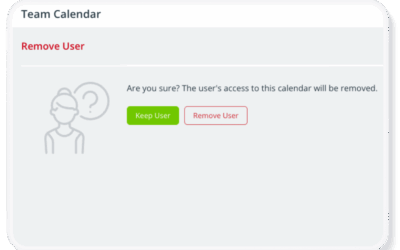
- Access control is much simpler and easier to manage. If someone changes roles or leaves a team, their access can be edited or revoked in one click.
Shareable calendar links are useful in certain, limited situations: for read-only viewing (e.g. to share a public events calendar), or embedded public calendars, or to provide limited, temporary access for external stakeholders. For active team members or anyone who needs ongoing ability to work with the calendar, account-based access provides stronger control and security.
Learn more setting up user access
Assign permissions based on roles
Carefully consider what access to provide for each user. Most people using your calendar do not need full modify permission, or access to all sub-calendars. For each user, assign permissions based on what that person needs to see and do on the calendar.
A good rule of thumb is to use the lowest permission level necessary. This allows people to do their work without risking accidental edits or deletions. Teamup provides nine advanced permission levels, allowing you to fine-tune what each user can see and do in the calendar. The following examples show common roles and appropriate permission levels. (Remember that you can assign a user’s permissions individually for each sub-calendar, rather than assigning one permission for all sub-calendars. More details below.)
| Role | Typical permission |
| Calendar administrator | Administrator |
| Team manager | Modify |
| Staff entering events | Add-only or Modify-my-events |
| Staff viewing schedules | Read-only |
| External collaborators | Read-only, no details |
Give access only to relevant sub-calendars
Teamup calendars are structured with multiple sub-calendars. Permissions can be customized for each sub-calendar, allowing you to control exactly who can see or edit specific information.
For example, a sales manager can modify sales calendars only and view the company events calendar. Contractors can have add-only permission for the project calendars they work on, and no access to other project calendars. Team members can modify their own schedule and view schedules for others on their team.
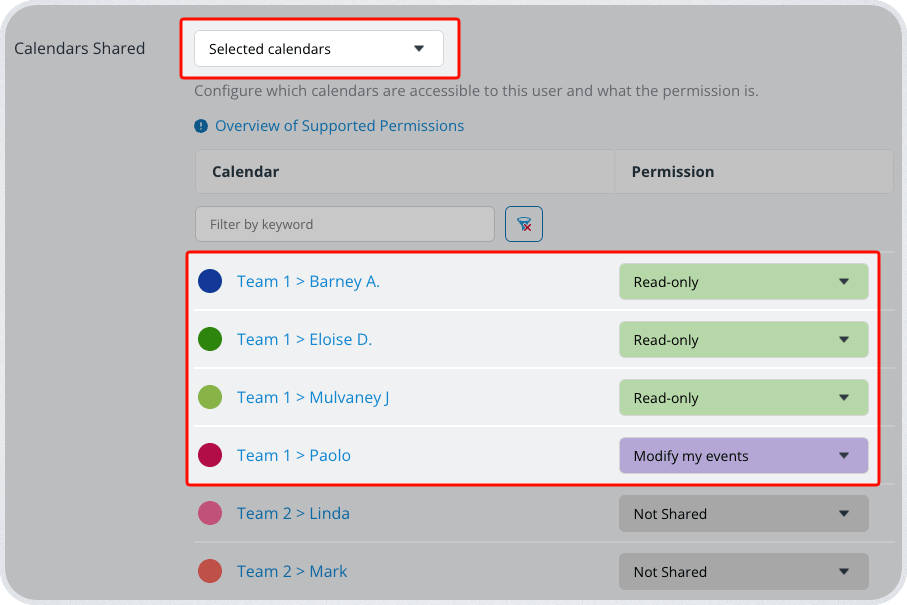
For example, team member Paolo may need to view the schedules of their colleagues, but only manage events on their own sub-calendar. For Paolo, the most secure access would be:
- Read-only permission to their colleagues’ sub-calendars.
- Modify or modify-my-events permission to their own assigned sub-calendar.
- Other sub-calendars could be set to Not Shared, so Paolo cannot even view them.
Using individual sub-calendar permissions helps ensure people see only the information relevant to their work.
Maintain security with good routines
Being calendar admin is a lot of responsibility, but a good foundation will make your job much easier. Keep things in order with regular routines to check potential areas where security could be compromised. Schedule them into your calendar to prevent issues and keep things running smoothly.
- Review calendar access. Check access on a regular basis. Make sure permission levels are set appropriately. Remove users who should no longer have access, and delete out-dated links.
- Follow these steps to secure the calendar when an employee leaves.
- Review notifications. Who’s getting notified about calendar events, and should they be? Delete subscriptions that shouldn’t be active.
- Review calendar setup. Are there ways you could optimize the calendar for better and easier use? Get inspiration from our blog and the Teamup Ticker.
🔒 Essential Guides: Calendar access + security
- How to Set Up Your Calendar Securely
- Share Your Calendar Securely with Customized Access Permissions
- Keep Calendar Access Secure and Up to Date
- Secure Your Teamup Calendar When an Employee Leaves
- What You Need to Know About Administrator Access
- ▶️ Review and Modify User Access
- Calendar Administrator Access Explained
- Replace Calendar Links with Account Access