
The Calendar for Groups
Getting Jobs Done
Use Teamup to organize teams, schedule jobs, manage availability, and share calendars. Streamline operations and collaborate with the right information in the right place at the right time.


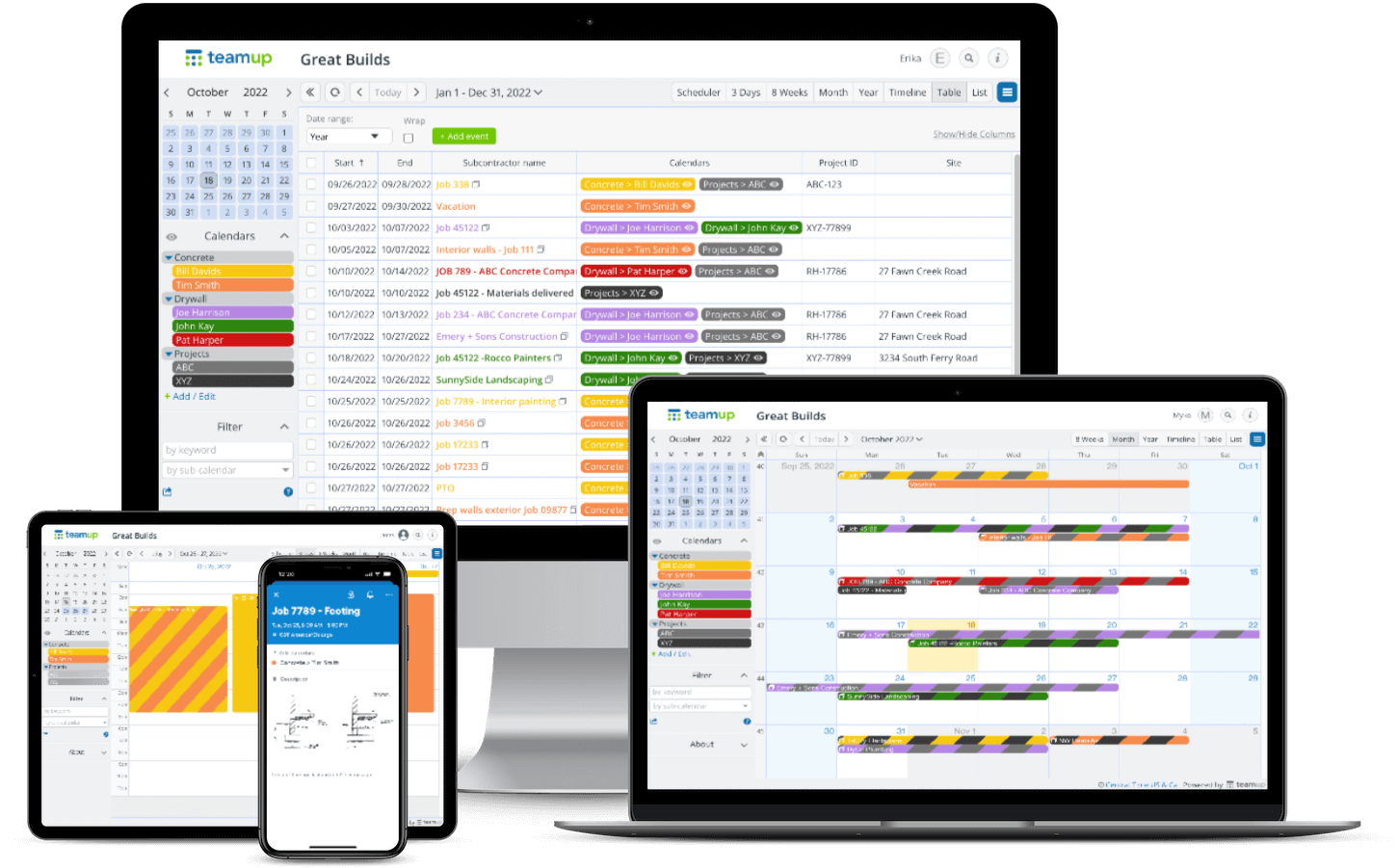
Flexible. Scalable. Versatile.
Organizing and visualizing time-specific information simplified!
Trusted by thousands of teams, large and small






Teamup by #s
5 million
monthly unique users
4 million
calendars created
1.7 billion
events added

“I tell everybody about Teamup. It’s an extremely useful tool and it helps keep the chaos under control.” →
Anna Mustaffa, Project Manager, ProLogic ITS

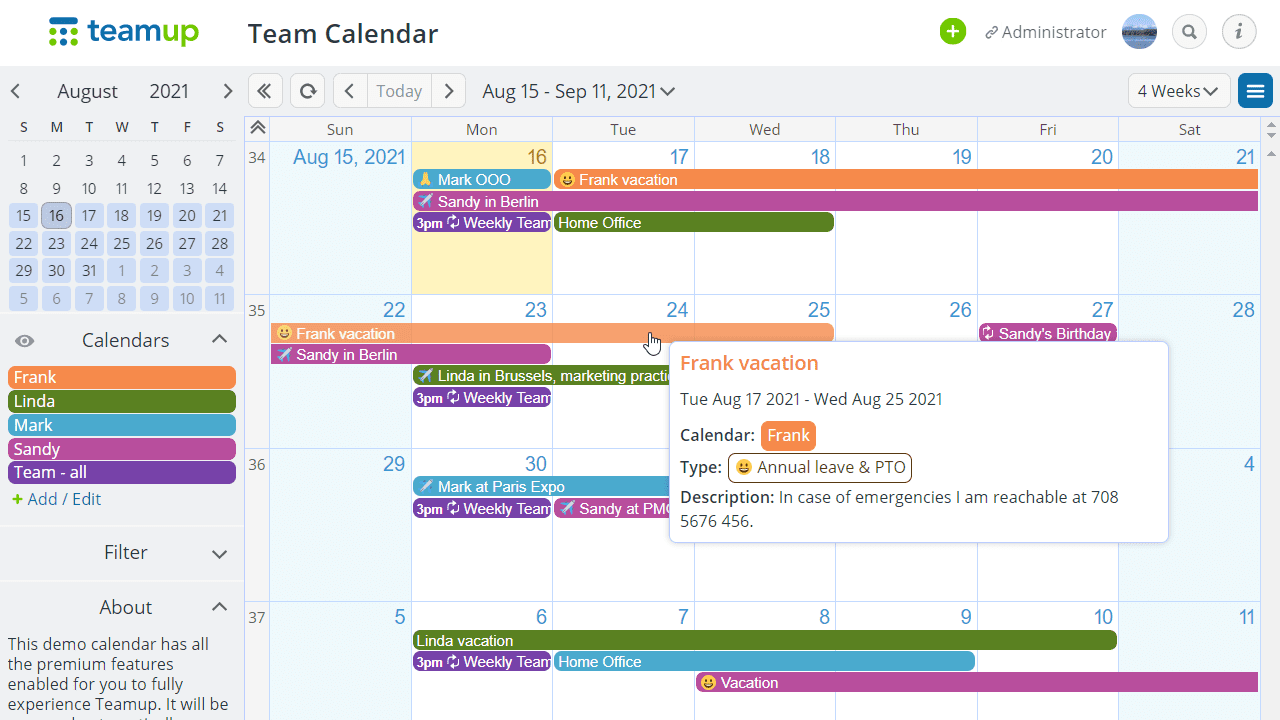

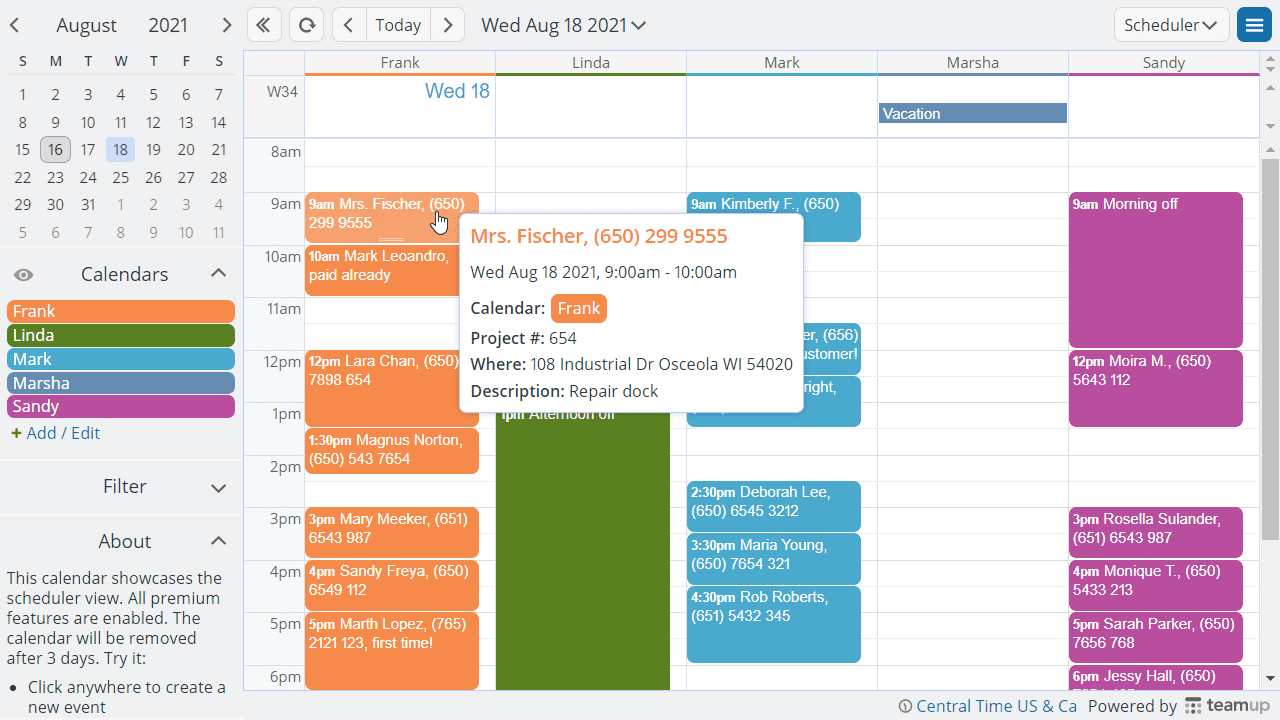

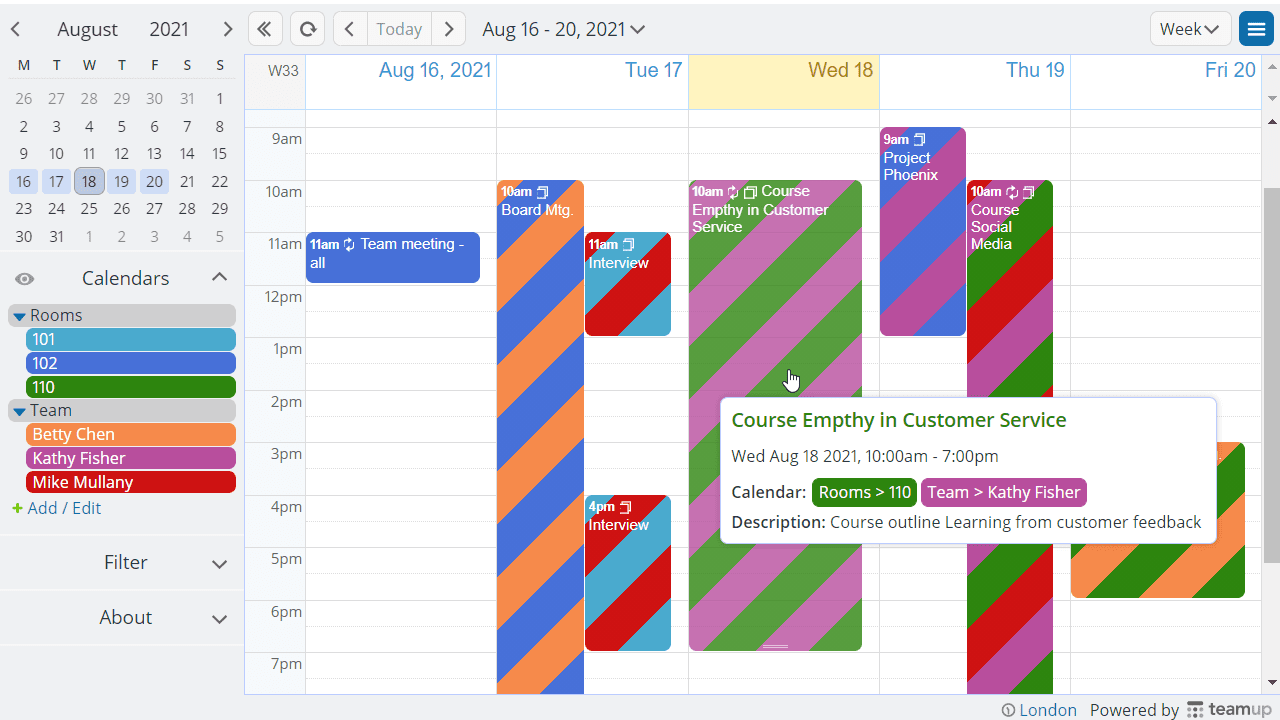

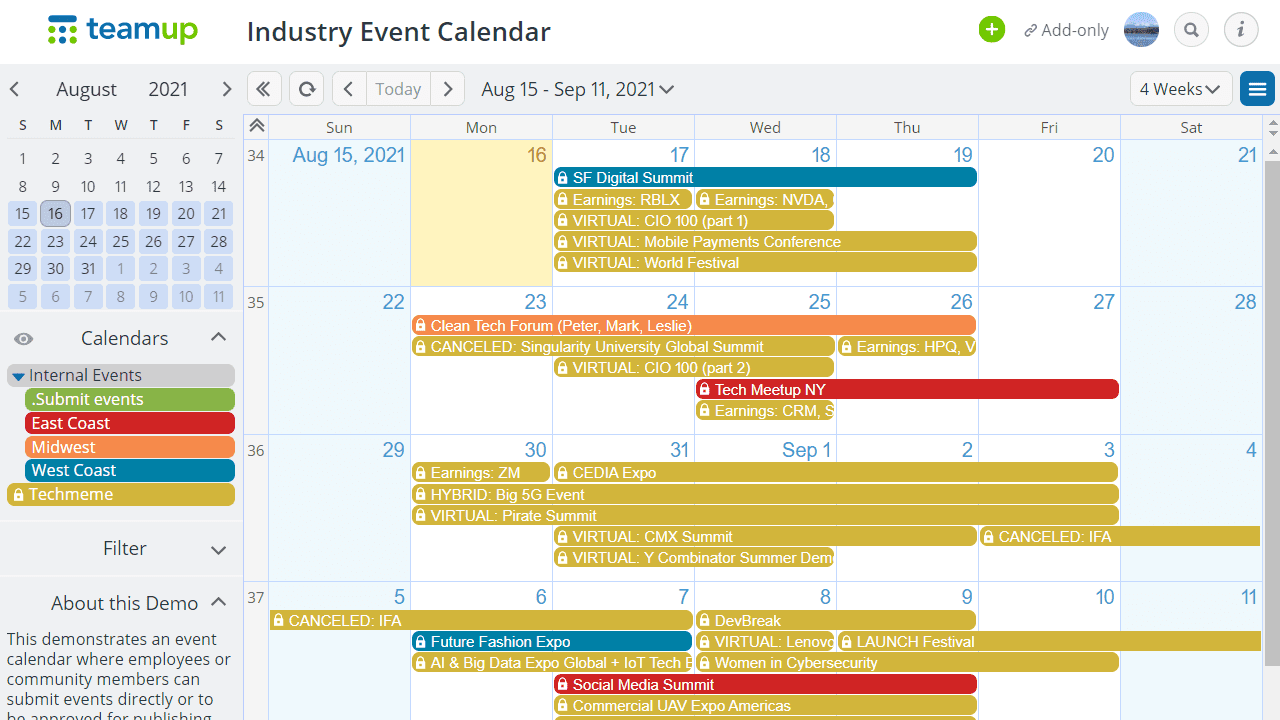
✅ Get a single view by consolidating calendars and scheduling silos.
✅ Organize in scale with sub-calendars and custom fields for maximum flexibility.
✅ Visualize calendar data in grids, lists, timelines, schedulers and sortable tables.
✅ Customize access permissions for optimal information visibility and privacy.
✅ Keep everything in context with custom fields, comments and attachments.
Featured Customer Stories

Media booking at the World Economic Forum
“We heard quite some positive feedback on Teamup, so well done!” →
The time zone challenge for 6000+ online meditators
“Teamup is critical to our whole infrastructure, almost as critical as Zoom.” →

Sharing learning content at 93 schools within a Swiss public school system
“Teamup is extremely scalable and adaptable.” →

Scheduling 100+ relief pharmacists in Canada
“We do lots of updates to our schedule. It’s easy to update in Teamup Calendar.” →
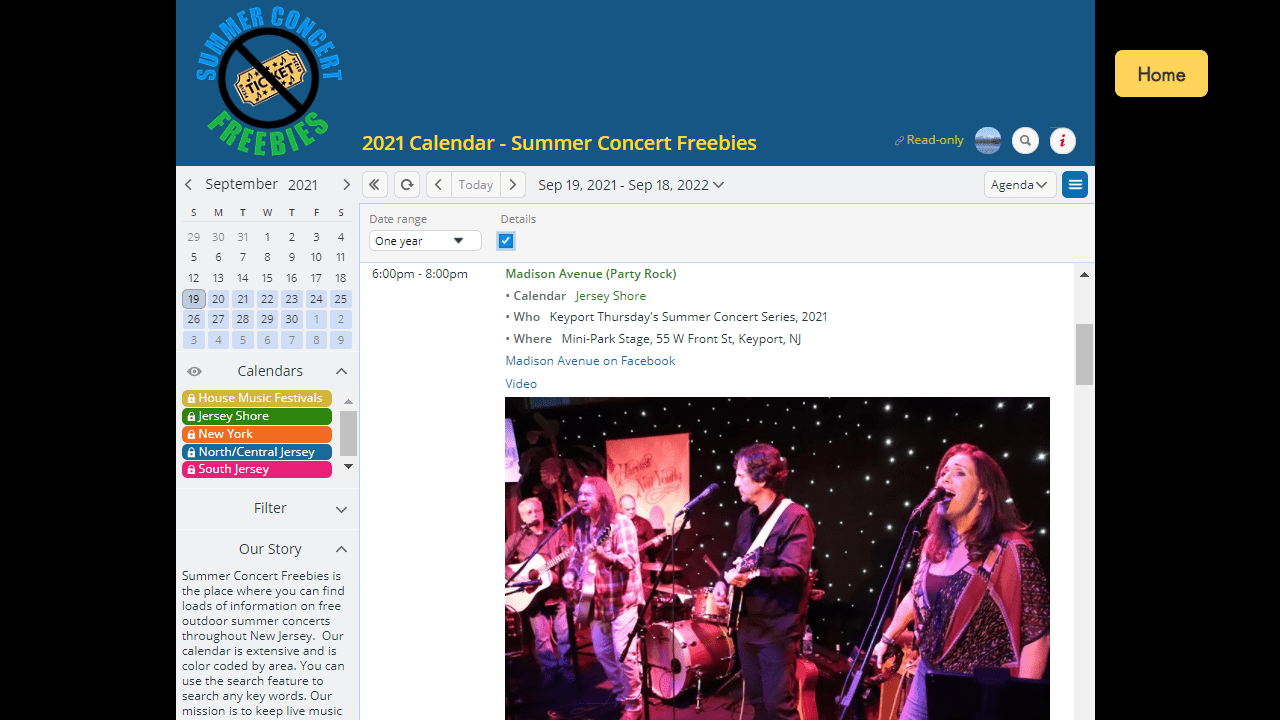
Public Calendars in Action


Create YOUR calendar solution with Teamup
Organize people, resources and activities on one page. Simple, secure and scalable.
.
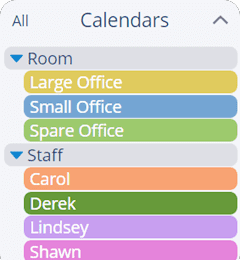
Organize by team, space
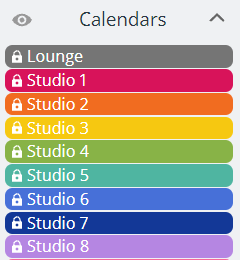
Organize by resource
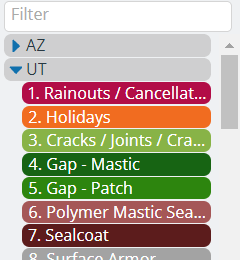
Organize by region, job
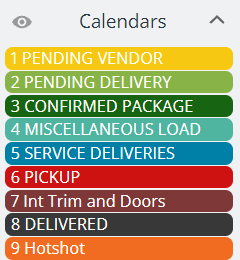
Organize by status
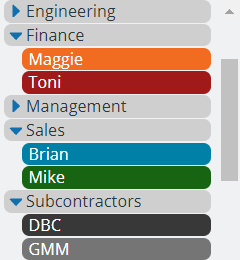
Organize by function
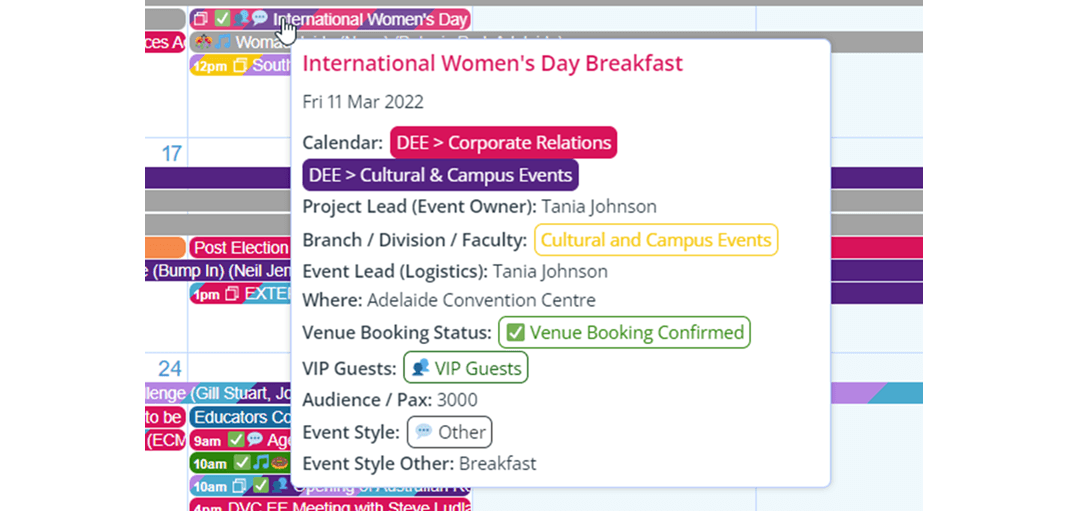
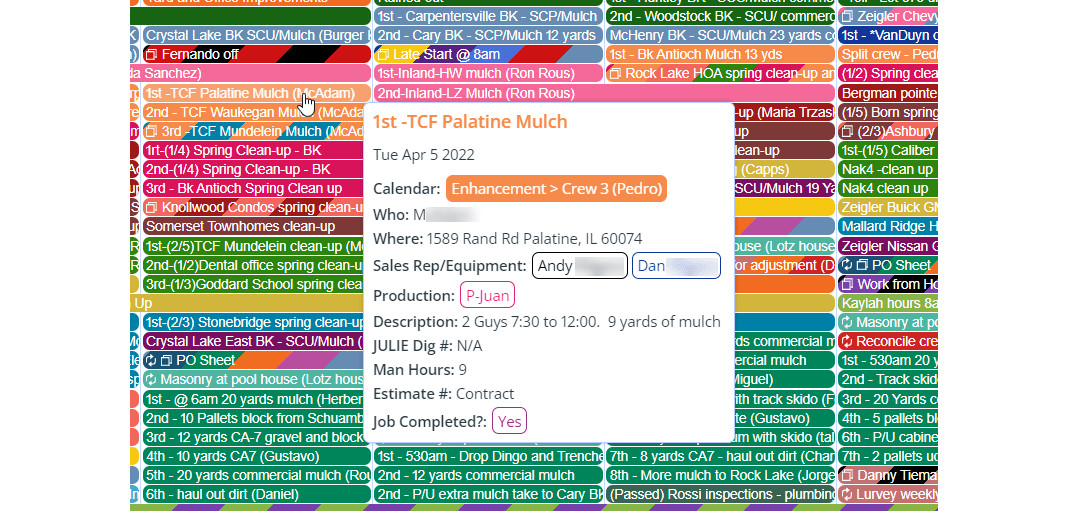
Customize event fields to YOUR needs
Capture and organize information with custom fields. Filter by context for more clarity.
.
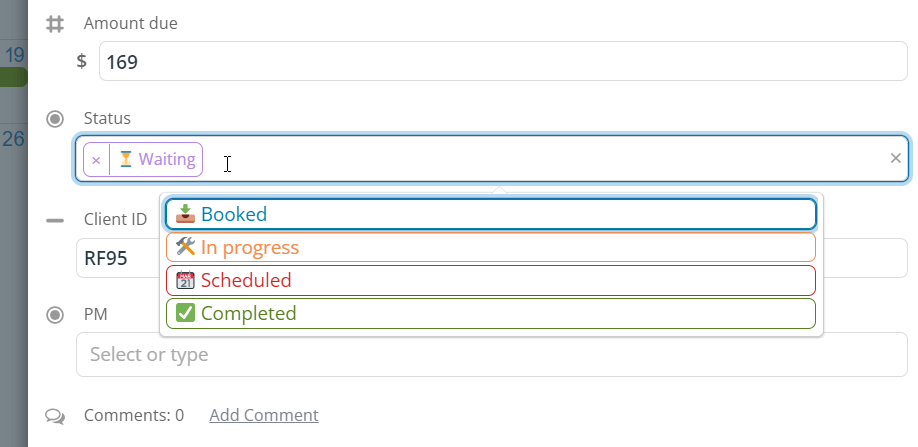

“I set up the number field to calculate our install dollars for the month. It helped tremendously to make sure that we had everything accounted for in our CRM correctly.” →
Deanna Cutlip, Office Manager, USA Insulation
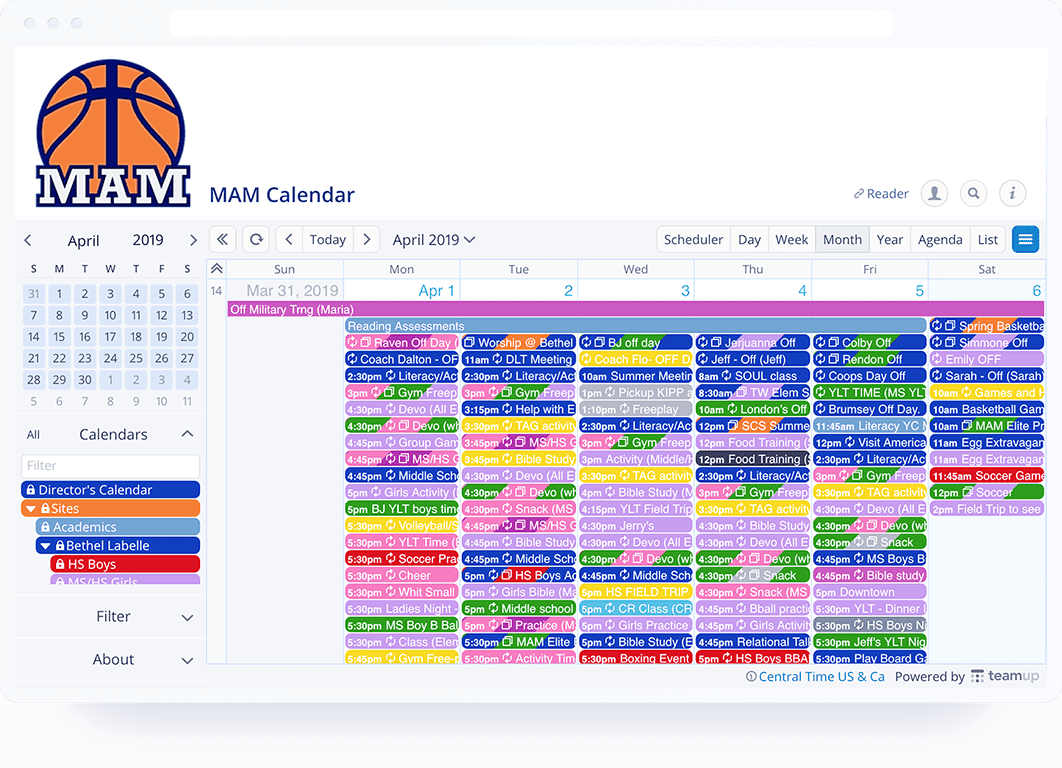
Organize Teams
🤓 Get visibility of who, what, where and when across the team.
👋 Communicate efficiently with fewer emails, messages, Excel sheets, or copy-pasting information.
🤝 Provide autonomy without security risk by creating custom calendar access for each individual and group.

“The digital marketing team at HPE is absolutely loving Teamup. The platform is saving us so much time and allowing the team to be able to activate social content across our digital platforms much more efficiently than before.”
Emily Bynum, HP Enterprise
“I have found the perfect app … It’s a combination of the simple calendar layout + the surprising amount of simple yet useful functionality (adding images, color coding, being able to easily copy or drag and drop, right clicking to bring up more options).”
Karolina
User Story: Hope Channel
“Hope Channel was hiring more people and our activities were increasing a lot more, so we decided to go with the premium option. Little did I know, it was the best decision I made. We all know with one click what projects we are working on, what is happening next, who is involved, deadlines and so much other important information. As a manager, I know exactly how long a project takes from initial idea to finished production, and this tracking makes my job easier.“
Daniel Claudet, Manager, Hope Channel Southeast Asia
Schedule Work
🥳 Optimize use of resources, avoid scheduling conflicts, and delegate tasks without losing sight of the big picture.
🙂 Keep all the details in one place with images, files, links, notes, and time-stamped event comments.
👏 Streamline communication and easily maintain records.
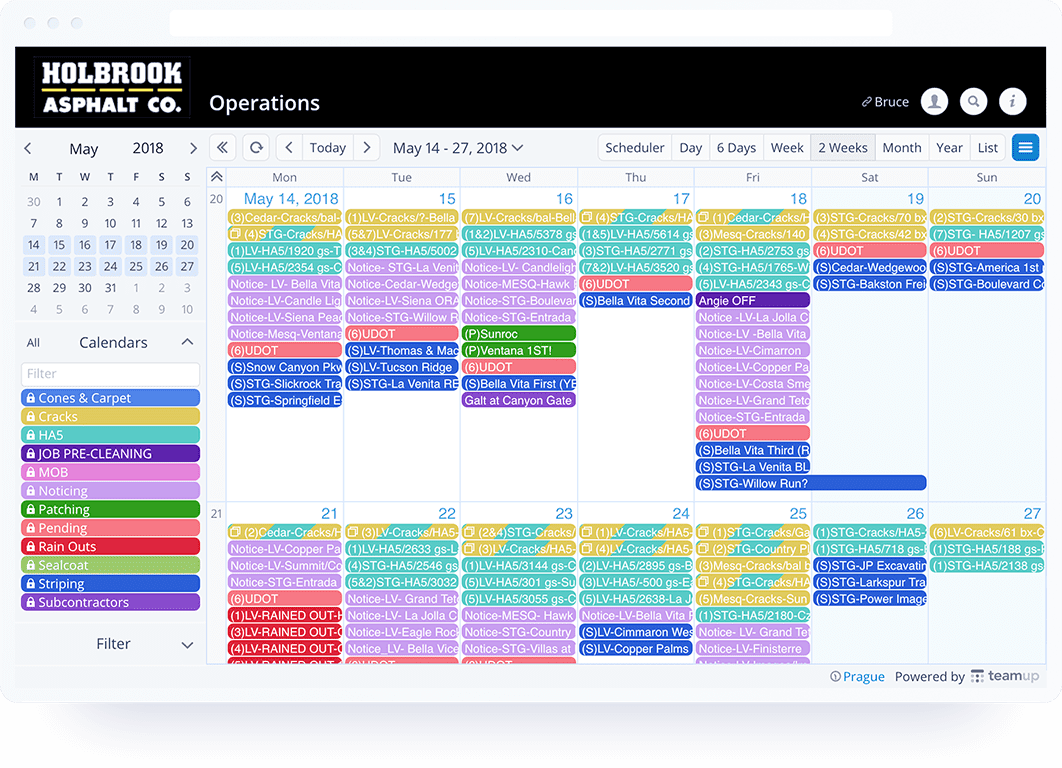

“Teamup continues to be a critical part of our operation here at Chicago Yacht Works. We have mechanical technicians, fiberglass repair technicians, sub-contractors and daily boat launch/haul-out tasks. We previously used a combination of whiteboards, outlook/google calendars (yuck!), and spreadsheets to schedule everything. It was a big headache! We now use Teamup to schedule our technicians – a vast improvement over the whiteboard method. The ability to prevent overlapping events in each technician’s calendar is a huge advantage.”
Jonathan Paige, Chicago Yacht Works
“Your calendar has been a lifesaver in desperate times. Our family of seven needed a way to schedule AND track AND assign who would accompany my inlaws, both nonagenarians, to medical appointments. By assigning subcalendars to each of us, with different colors (and black for “UNASSIGNED”), we are able to see when the next appointment is, who’s got it, and to fill in descriptions of items discussed in the Description field.”
John Donohue
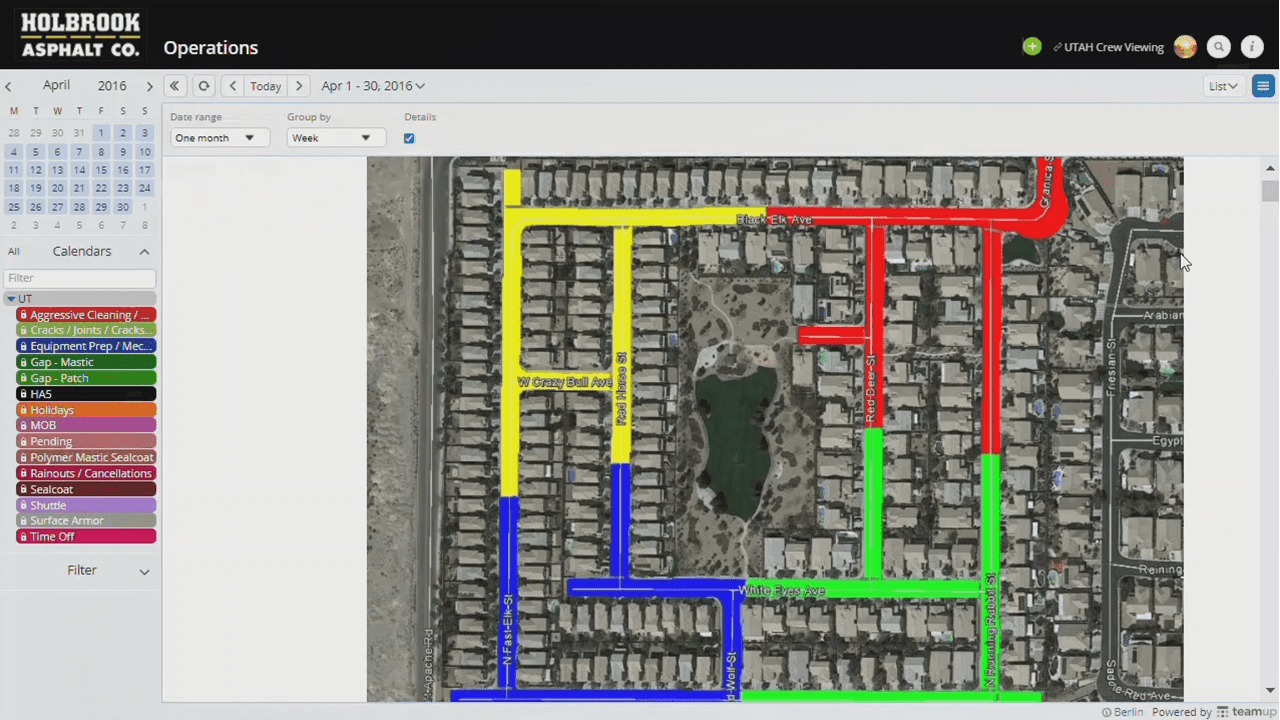
User Story: Field Service Operations
“The varied permissions are still OUR biggest luxury with this calendar as well. We have so many varied positions and each one only needs a piece of the calendar to do their job. With Teamup, we can basically organize the entire company’s production process without confusing or overloading any of our departments with information that they do not need.”
Teresa Ortiz, Project Manager, Holbrook Asphalt
Manage Availability
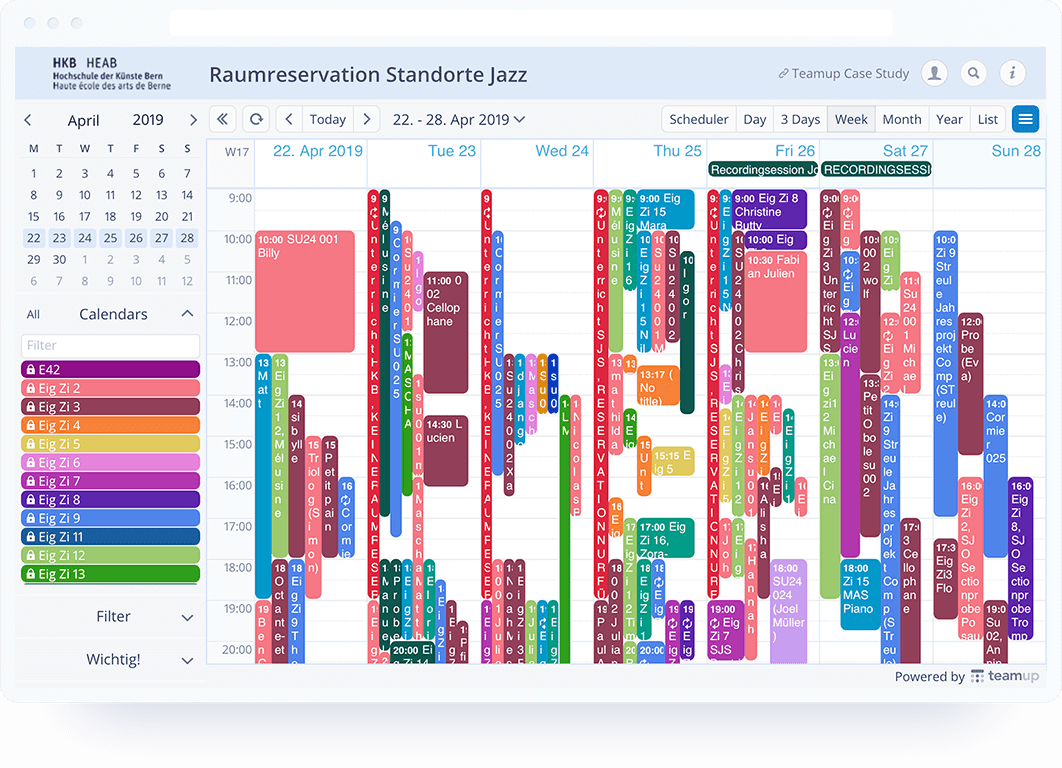
✌️ Eliminate the back-and-forth of checking on availability.
😉 Enable self-booking and keep central access control: no risk of unwanted alteration to existing bookings.
🧐 Customize information disclosure based on user roles; keep sensitive data safe and ensure protection of privacy.

“We are a cancer treatment hospital, medical center, basic science and clinical research facility for type 1 diabetes, and have a graduate school for training scientists of the future. We use Teamup in our Diabetes and Metabolism Research Institute because we can no longer freely use all of the equipment, instruments, and services available in our building without first controlling traffic in our labs and specialty rooms. It is a terrific solution.”
“We are a professional ballet company in NY (with approx. 90 dancers), along with the school for students ages 3-18. We house 9 studios total, shared among different programs and departments (including outside rentals). It is immensely efficient to have a streamlined system (our old way was having an excel spreadsheet that didn’t allow remote access) that is simple yet effective.”
User Story: Horse Stable Scheduling
“The good thing about Teamup is that you can really adapt it to your needs very easily. Thus, with one or more individual calendars, you can also manage allocations for riding arenas, halls, stalls, equipment, and more at the stable… The big advantage compared to scheduling appointments with WhatsApp and other messenger services is that you can always keep an eye on future appointments (e.g. hoof groomer comes in two weeks). Overlaps of appointments become immediately visible and the calendar can be set to prevent them from being allowed in the first place.“
Markus Erdmann, Publisher, Country-Reiten.de

Share Events
👀 Publicize events anywhere with easy share and embed options.
🖼️ Consolidate events from multiple sources into one view. Decentralize event management efficiently and securely.
⌛ Reduce information silos across organizational units and increase transparency for better collaboration.
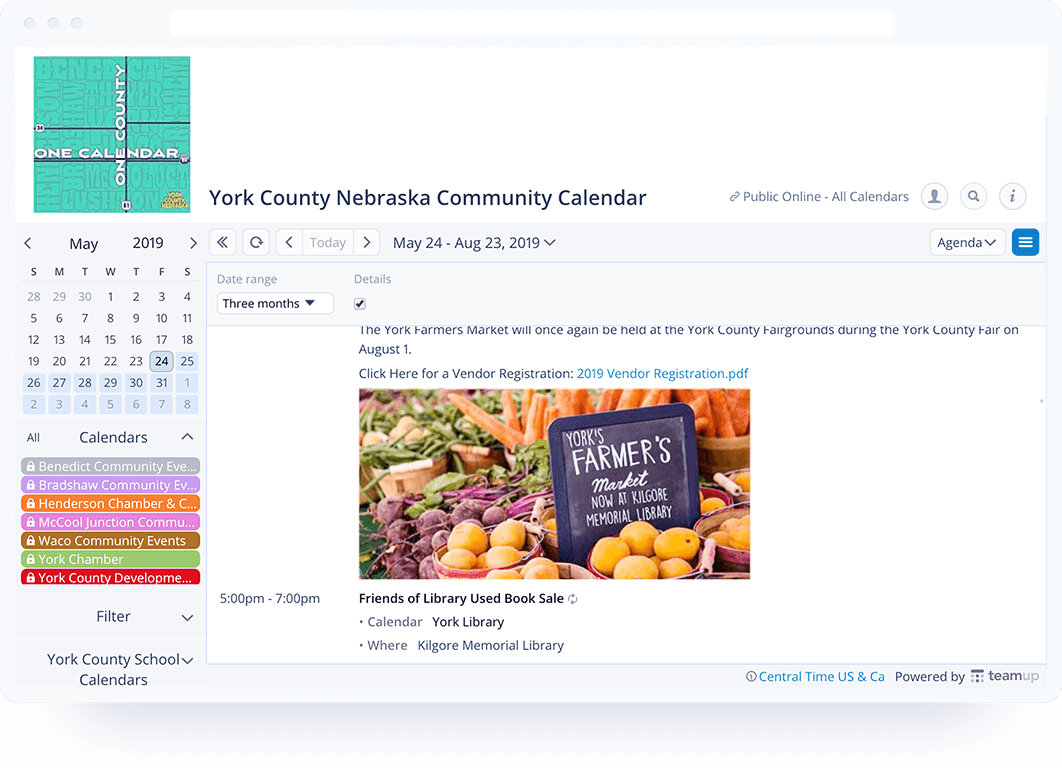

“I’ve been using Teamup to organise a couple of virtual conference programs – a nice thing about it is that it automatically adjusts to the local timezone of users, and because virtual conferences happen across multiple timezones this has made it much easier for people as they don’t need to do any timezone calculations for themselves.”
David Warton, Professor, UNSW Sydney
“We love the calendar and the flexibility it offers. We feel like we were saved from some nightmare trying to manage the calendar on one end, the events on another and then the registration on yet another platform.“
Benoit Rouleau, Vice président, Vélo Plaisirs
User Story: UN Web TV Live Schedule
“The UN Webcast team is very busy. Teamup has been helping us a lot with scheduling, attributing and promoting the very important sessions of the Human Rights Council and … The multicolor Teamup calendars are keeping us on top of things 😊 We are now also using the Teamup Daily Agenda to forward the UN Web TV live schedule calendar to all our subscribers.”
Valerie Justin, Advance Planning Coordinator, UN Web TV
User Story: A Global Community
“We are using your calendar to schedule meditation groups in 4 different virtual chapels… 150 online meditation groups meeting in those chapels… 6000 people using our calendar to find meditation groups, and those people are scattered over probably 20 time zones… The functionality of Teamup is critical to supporting our world wide community.“
